

Refunds, Fees & Deductions
ShipBob Returns issues refunds through your connected Shopify store, so refunds land on the customer’s original payment method and show up in Shopify like any other refund. This guide covers issuing refunds manually, automating them, and configuring deductions such as restocking or label fees.
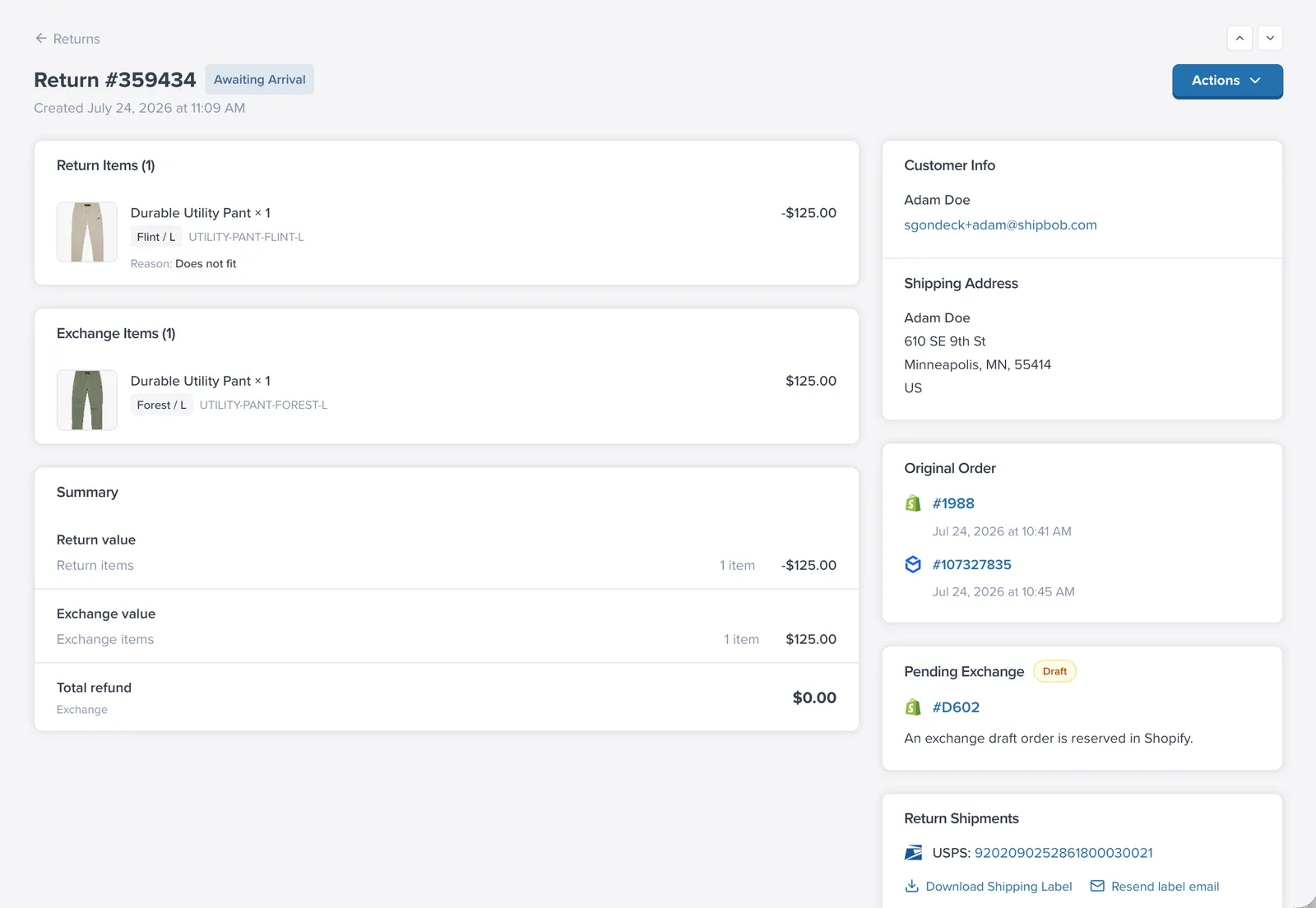
Issuing a Refund from the Return Detail Page
Open the return from the Returns page. When a return is eligible for a refund you will see a Settle Refund (or Issue Refund) action:
- Click Settle Refund. You can review the items and amount before confirming.
- Confirm. ShipBob Returns issues the refund through Shopify’s API against the original order.
- The return’s refund badge updates to Refunded — or Partially Refunded if only some items were refunded (for example, items that were quarantined at inspection are excluded).
A few things to know:
- Issuing a refund does not change the return’s lifecycle status. A refund can be settled while the return is still Arrived, and a return can be Completed while its refund is still Pending Refund.
- Partial refunds happen automatically when some items on the return should not be refunded — for example, a unit the warehouse quarantined as unsellable, or an unidentified item you chose not to accept.
Automating Refunds with the Auto-Refund Flow
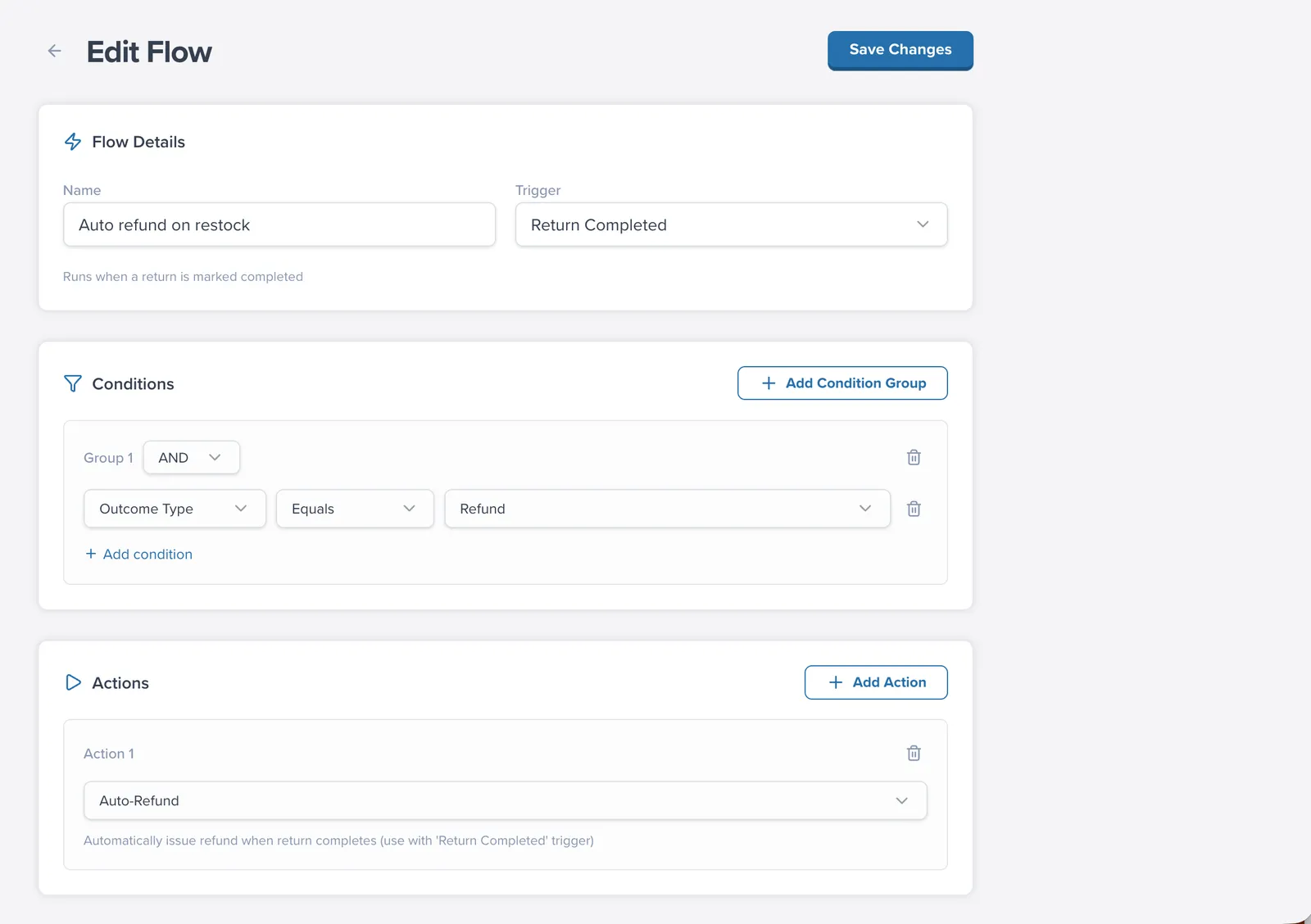
If you do not want to settle refunds by hand, build a flow with the Auto-Refund action — typically paired with the Return Completed trigger so the refund is issued the moment the warehouse closes out the return.
- Go to Flows and create a new flow.
- Choose the Return Completed trigger.
- Add any conditions (for example, only auto-refund below a certain order value).
- Add the Auto-Refund action and save.
See Automate Returns with Flows for trigger types and evaluation order.
Configuring Refund Deductions
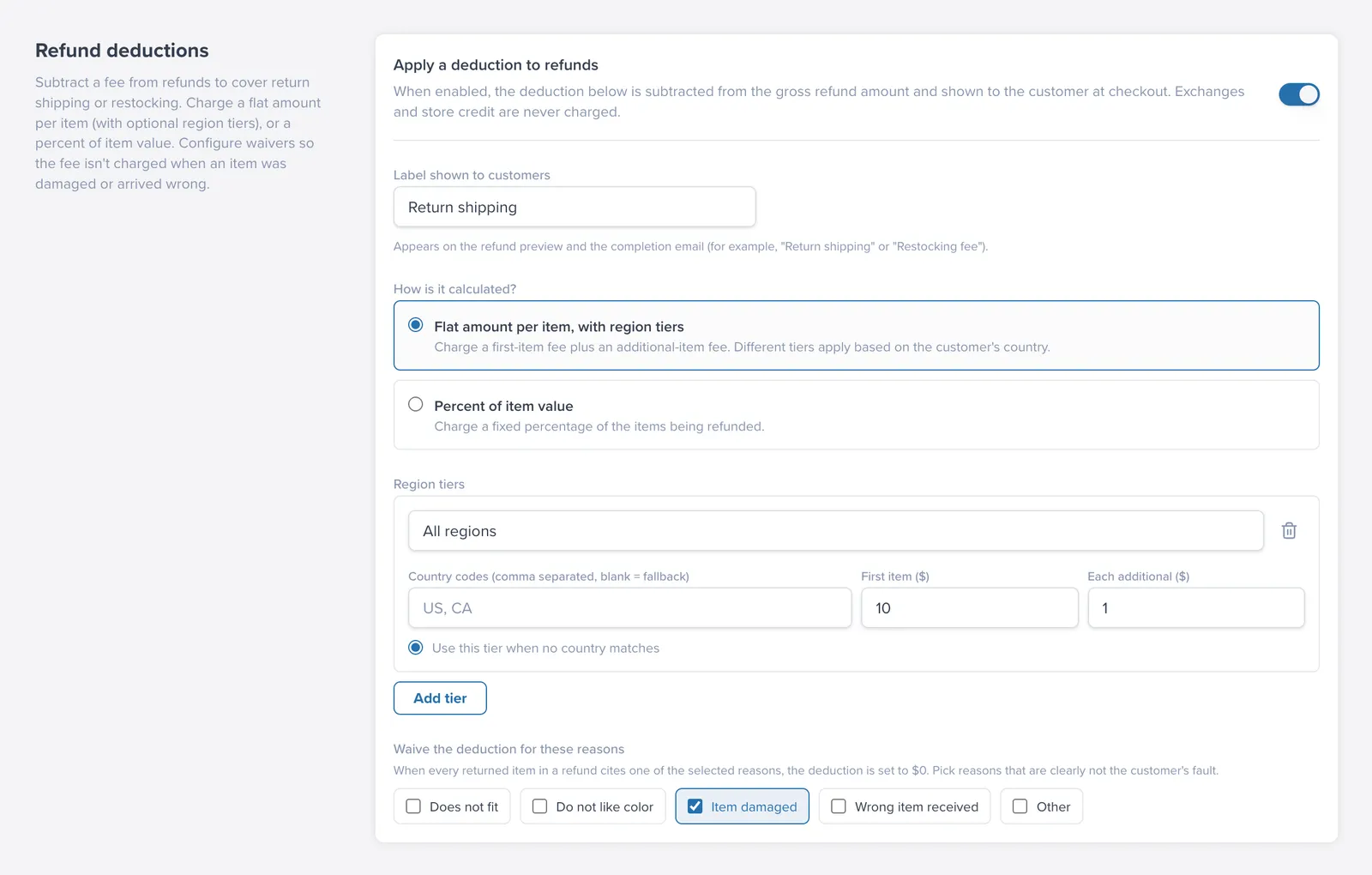
Deductions let you recover costs like restocking or return shipping by reducing the refund amount. Configure them in Settings under Refund deductions:
- Turn on Apply a deduction to refunds.
- Choose how the deduction is calculated:
Waiving deductions when the fault is yours
Under Waive the deduction for these reasons, pick the return reasons that should skip the deduction — typically reasons like Item damaged or Wrong item received, where charging the customer a fee would not be fair.
The waiver applies when every item on the return uses a waived reason. If a return mixes waived and non-waived reasons, the deduction still applies.
Store Credit Bonus
For current and upcoming non-refund outcomes, see Exchanges and Upcoming Outcomes.
What the Customer Sees
Deductions are applied before the customer submits, so there are no surprises:
- On the review step, the portal shows an Estimated Refund total that already reflects any applicable deduction.
- Store credit messaging is not shown yet because store credit is not currently available.
- The confirmation email repeats the expected refund details.
FAQ
Can I issue a refund before a return is marked Completed?
Yes. Refund settlement is tracked separately from the lifecycle status, so a return can be Arrived while still eligible for refund settlement.
Why would a return be partially refunded?
Partial refunds usually occur when only some items qualify for refund, such as quarantined units or items you decide not to accept.
Do deduction waivers apply to mixed-reason returns?
No. Waivers apply only when every item on the return uses a waived reason. Mixed waived and non-waived reasons still apply the deduction.