

Troubleshooting & FAQ
Troubleshooting & FAQ
This page covers what to do when something goes wrong, how to keep your connection secure, and answers to common questions.
Security Best Practices
The ShipBob MCP Server supports two authentication flows, each with different exposure. Follow the practices that match how you connected:
If you use the standard OAuth setup (Setup) — there is no static API token to leak. The client holds a short-lived OAuth session that you can revoke by removing the server entry.
If you use the API-token setup (Setup with API Token) — a long-lived Bearer token sits in your config file. Treat it like a password:
- Never commit the token to source control. Prefer your client’s secret mechanism instead of hard-coding tokens in shared config files (for example, in VS Code
mcp.json, use${input:shipbob_token}or${env:SHIPBOB_API_TOKEN}). - Rotate periodically. Regenerate the token from your ShipBob dashboard on a regular cadence, and after any suspected exposure.
- Revoke immediately on exposure. Delete the token in your ShipBob dashboard under Account → API Access the moment it leaks — that invalidates it server-side before anyone can use it.
- Use environment-specific tokens. Never reuse a production token in sandbox configs or vice versa.
Regardless of flow:
- Disconnect clients you no longer use: Remove the server entry from any AI client you no longer use.
- Use HTTPS only: All ShipBob MCP endpoints are HTTPS. Never accept an
http://URL claiming to be the ShipBob MCP server. - Mind your scopes: Your ShipBob account’s permissions control which tool calls succeed. Insufficient permissions return
403 Forbidden. - Treat consent screens seriously: Only approve OAuth consent in clients you trust.
Troubleshooting
Connection Issues
Problem: AI assistant cannot reach the ShipBob MCP Server.
Solutions:
- Verify the URL matches the one listed on the Setup page for your environment.
- Check your internet connection and any corporate proxy / firewall rules.
- Confirm your client supports remote MCP servers over Streamable HTTP. stdio-only clients are not supported.
- If the client uses a config file (such as VS Code’s
mcp.json), validate the JSON syntax.
OAuth / Sign-In Issues
Problem: The browser sign-in never completes, or the client says it is not authorized.
Solutions:
- Confirm the URL + account environment match. See the callout on Setup for the sandbox vs production rule.
- Allow pop-ups for your AI client. Some browsers block the OAuth window.
- If you signed in but the client still shows “not connected”, remove the server entry and add it again to trigger a fresh OAuth flow.
- Clear stale OAuth sessions: sign out of the client, restart it, and re-add the server.
Missing Permissions Error (Claude)
Problem: When you click Add while adding a custom connector on claude.ai, you see a Missing permissions error.
Cause: On managed (organization) plans, only a Claude admin can add a custom connector. You can still connect to ShipBob MCP through the connector directory instead, as long as your Claude admin has installed it for your organization.
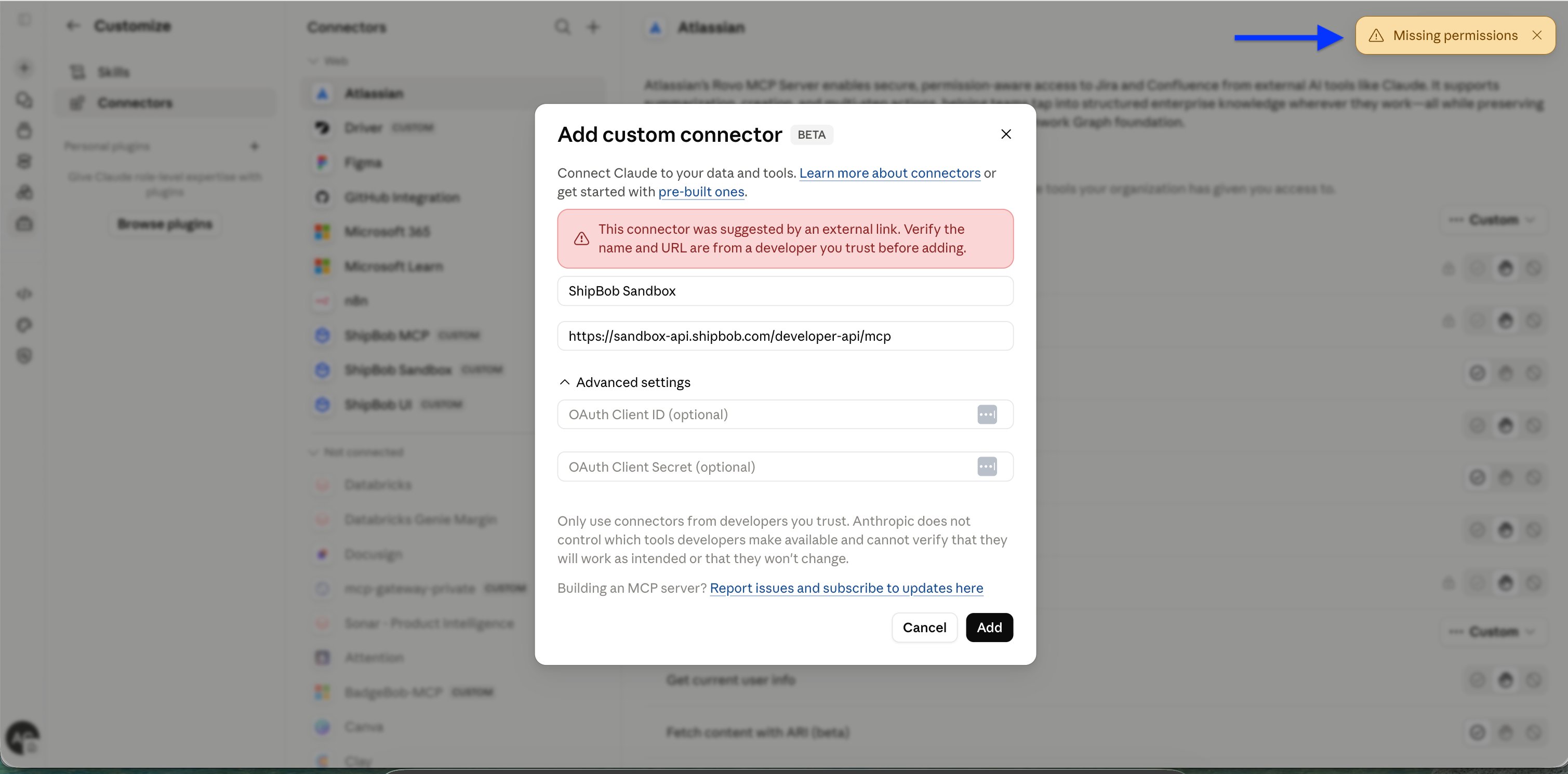
Solution: Connect through the directory instead of adding a custom connector, as long as your Claude admin has installed ShipBob MCP for your organization.
-
Close the pop-up by clicking Cancel.
-
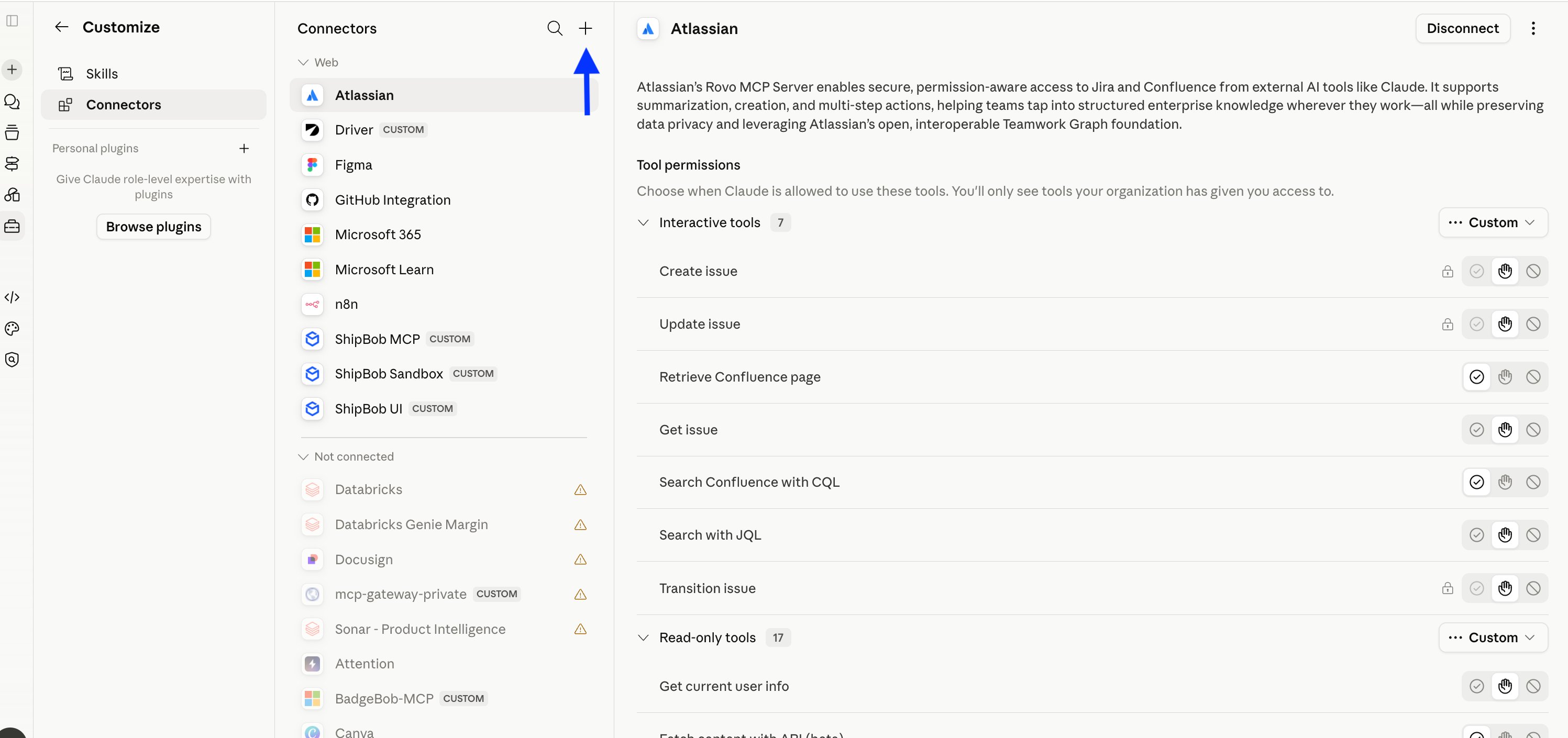
Click the + (plus) icon at the top of the Connectors panel.
-
In the search box, type
ShipBob, then select ShipBob MCP.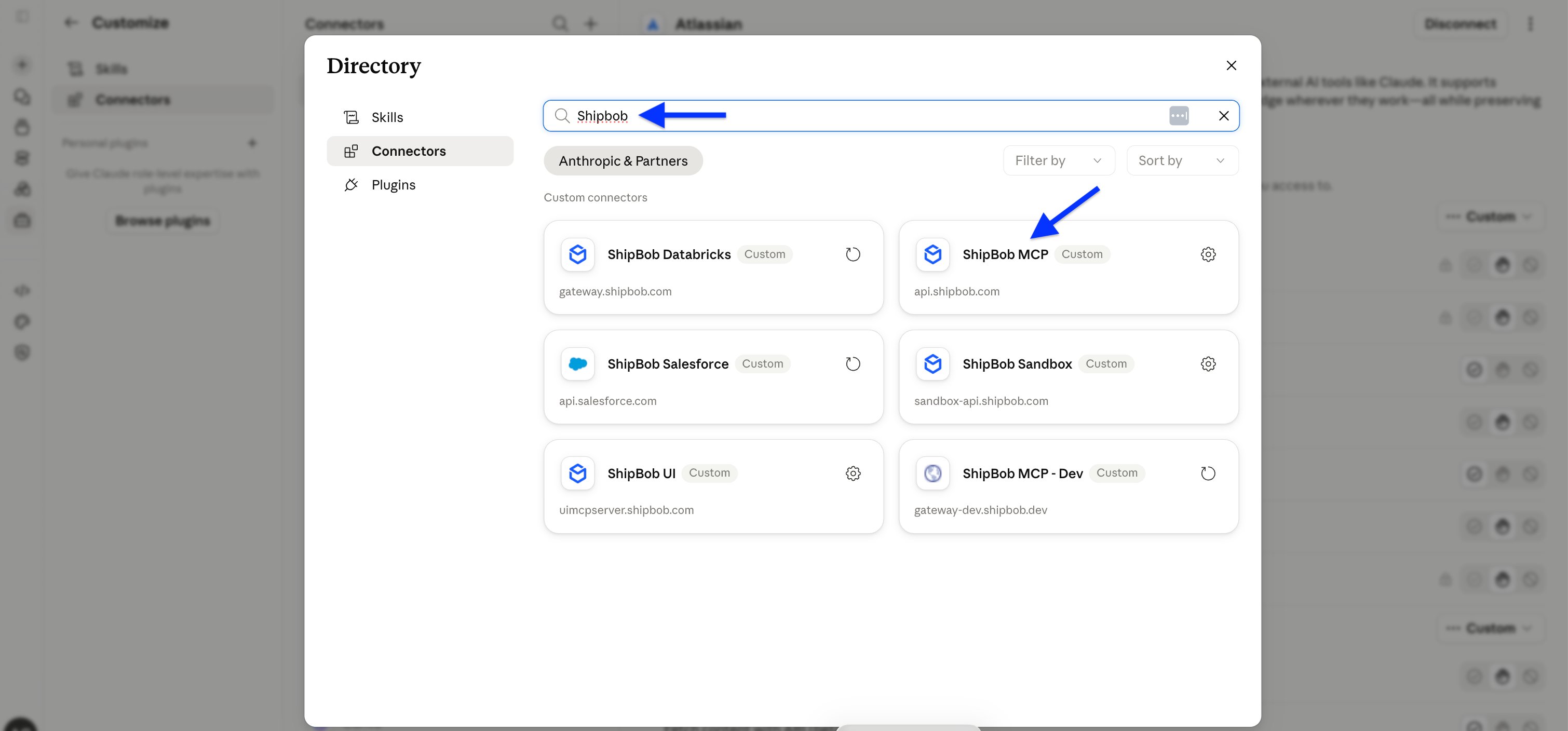
-
Click Connect and complete the authorization process to establish connection. Your account is now linked to ShipBob MCP.
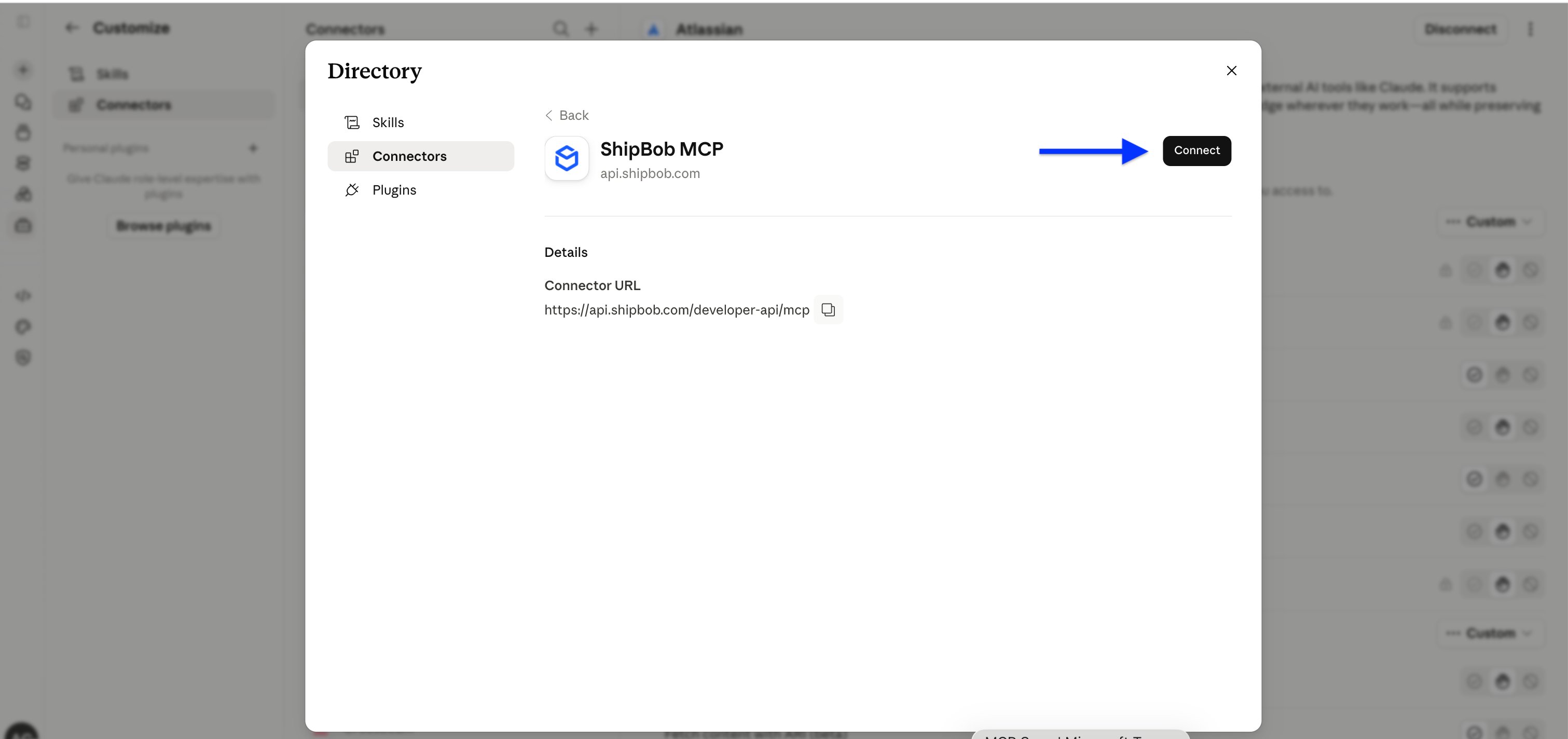
If you don’t see ShipBob MCP: If the search shows “No connectors match your search,” your organization hasn’t installed the connector yet. Ask your Claude admin to install ShipBob MCP. Once installed, it appears in the search and you can click Connect.
No Tools Available
Problem: The assistant says no ShipBob tools are available.
Solutions:
- Confirm the server is in the Connected state in your client.
- Restart the AI client after adding the server.
- Re-run the verification prompt from Setup.
- Check that your ShipBob account has access to the Developer API.
Tool Execution Failures
Problem: A tool runs but returns an error.
Solutions:
- Check that you supplied any required parameters (order IDs, SKUs, dates).
- Validate parameter formats against the ShipBob API documentation.
- Read the error message.
403 Forbiddenmeans your account lacks permission for that operation. - Confirm the data exists in the environment you are connected to.
- If a write tool fails on a record you can read fine, the record may belong to a different channel. The AI client can only write on the channel created at the consent screen. See Setup > What the Consent Screen Asks For.
403 or 404 on Cancel / Modify Operations
Problem: A cancel or modify tool returns 403 Forbidden (or sometimes 404 Not Found) even when the assistant can clearly read the record.
Cause: These operations require the request’s channel to match the channel that originally created the record. Using a different channel’s session returns 403 (or 404) even when the OAuth session has the correct write scopes. A 404 here usually means “record exists but does not belong to your channel,” not “record missing.”
Affected operations — writes against orders, shipments, receiving orders, and returns are channel-scoped:
Orders / shipments
- Cancel Order
- Cancel Shipment by Shipment ID
- Cancel Shipment by Order ID and Shipment ID
- Batch Cancel Shipments
- Batch Update Tracking
- Bulk Update Shipping Service
- Update Shipment Address
- Update Shipment Line Items
Receiving
- Cancel Receiving Order
Returns
- Update Return
- Cancel Return
Solutions:
- Fetch the record first (read tools work across all channels) and check its
channel_id. - Reconnect the MCP server using a session whose channel matches that
channel_id. - If you manage multiple channels, add a separate MCP server entry per channel and use the matching one for write operations.
See Concepts > Channel for background on channel ownership.
Rate Limiting
Problem: Requests are being throttled.
Solutions:
- Reduce request frequency.
- Use batch / “All” variants of tools where available.
- Review the Rate Limit page for current limits.
Data Looks Wrong
Problem: Returned data does not match what you expect.
Solutions:
- Confirm you are connected to the right environment. Sandbox and production are isolated and do not share data.
- Cross-check the same query directly in the ShipBob dashboard.
Frequently Asked Questions
What AI assistants are compatible?
Any MCP-compatible client with remote server + OAuth support. Tested clients include claude.ai, ChatGPT (custom connectors, on Plus/Pro/Business/Enterprise/Edu plans with Developer Mode), Claude Desktop (via custom connector), Claude Code CLI, and VS Code with GitHub Copilot. Any other modern MCP client that supports remote servers over Streamable HTTP will also work.
Do I need an API token?
Not for the standard Setup — it uses OAuth. You sign in with your ShipBob account on first connection and the client stores the OAuth session.
An API token is only needed if you follow the alternative Setup with API Token flow, which is intended for AI clients or automation that cannot open a browser to complete OAuth.
How long does sign-in last?
OAuth token lifetime matches the rest of the ShipBob API. See Authentication for token and refresh details.
Is there a cost?
The MCP server is free to use for ShipBob customers.
Can I use this in production?
Yes. Use the production URL listed on Setup and sign in with your production ShipBob account.
How do I switch between sandbox and production?
Add two server entries, one for each URL, and sign in to each with the matching account. You can keep both active and pick the right one in conversation.
Is my data secure?
Yes. All traffic uses HTTPS, authentication uses OAuth (no static credentials), and the MCP server does not store your data. It proxies live calls to the ShipBob Developer API.
Can I limit which tools the assistant can call?
Two layers control this. First, your AI client only performs actions you explicitly request. Second, your ShipBob account’s permissions determine which tool calls succeed against the API.
Which records can the assistant read?
The AI client can read data from every channel on your merchant account, but can only write (create, update, cancel) on the channels created at the consent screen. It cannot modify records that belong to other applications’ channels. See Concepts > Channel for background.
How do I revoke access?
Revocation is controlled by your AI client. Remove the server entry (or disconnect / delete the connector) inside the client.
Support
- Email: support@shipbob.com
- Documentation: developer.shipbob.com
- API Reference: ShipBob API Docs
When contacting support, include
- Environment: Sandbox or Production
- AI client and version: e.g., claude.ai, ChatGPT, Claude Desktop, Claude Code CLI, VS Code with GitHub Copilot
- Error message: Exact text
- Prompt: What you asked the assistant
- Expected vs actual: What you expected and what happened