ShipBob Logistics ShipStation
Follow these steps to configure the ShipStation integration with ShipBob Logistics in your ShipBob account.
Before You Begin
Make sure you’ve completed the following prerequisites before starting the integration process:
- Create a ShipBob Account
- Verify your email address
- Add a Payment Method
A valid payment method is required for shipments to receive tracking numbers.- For sandbox testing, follow the guide here to add a test payment method: Sandbox Setup
Install the Integration
- Open the appropriate link based on your environment.
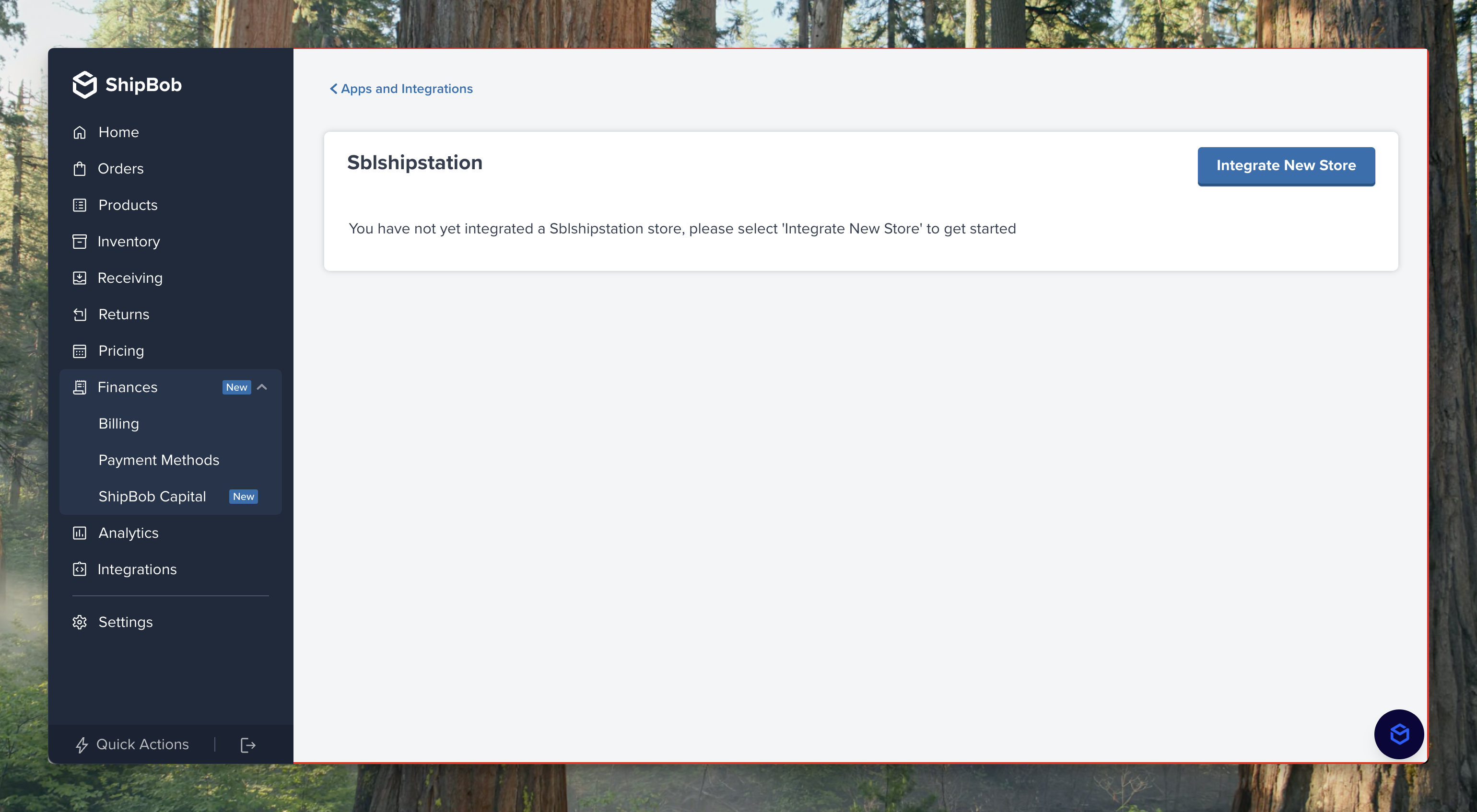
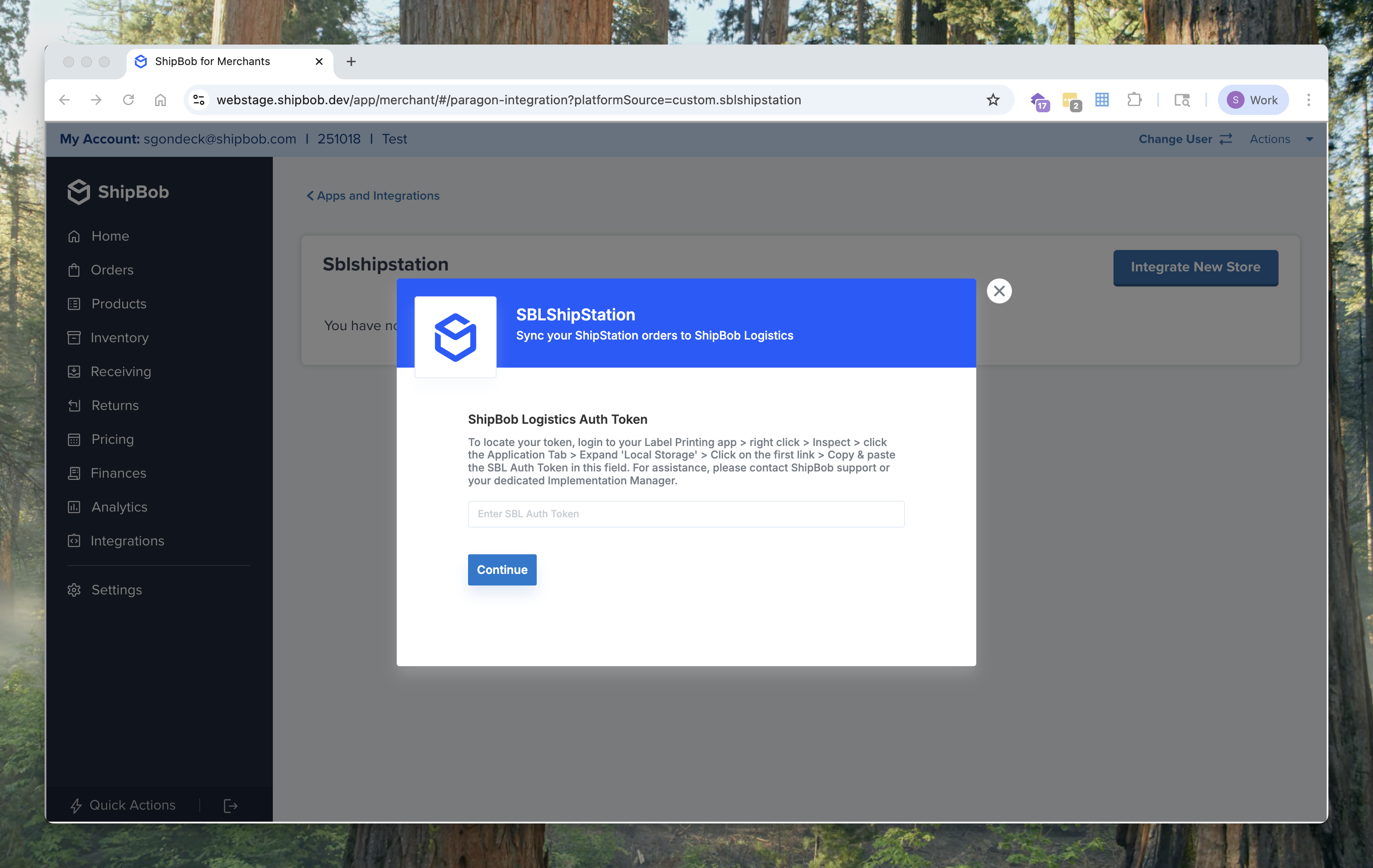
- Click Integrate New Store and add your ShipBob Logistics Auth Token.
Contact a ShipBob team member to obtain your ShipBob Logistics Auth Token.
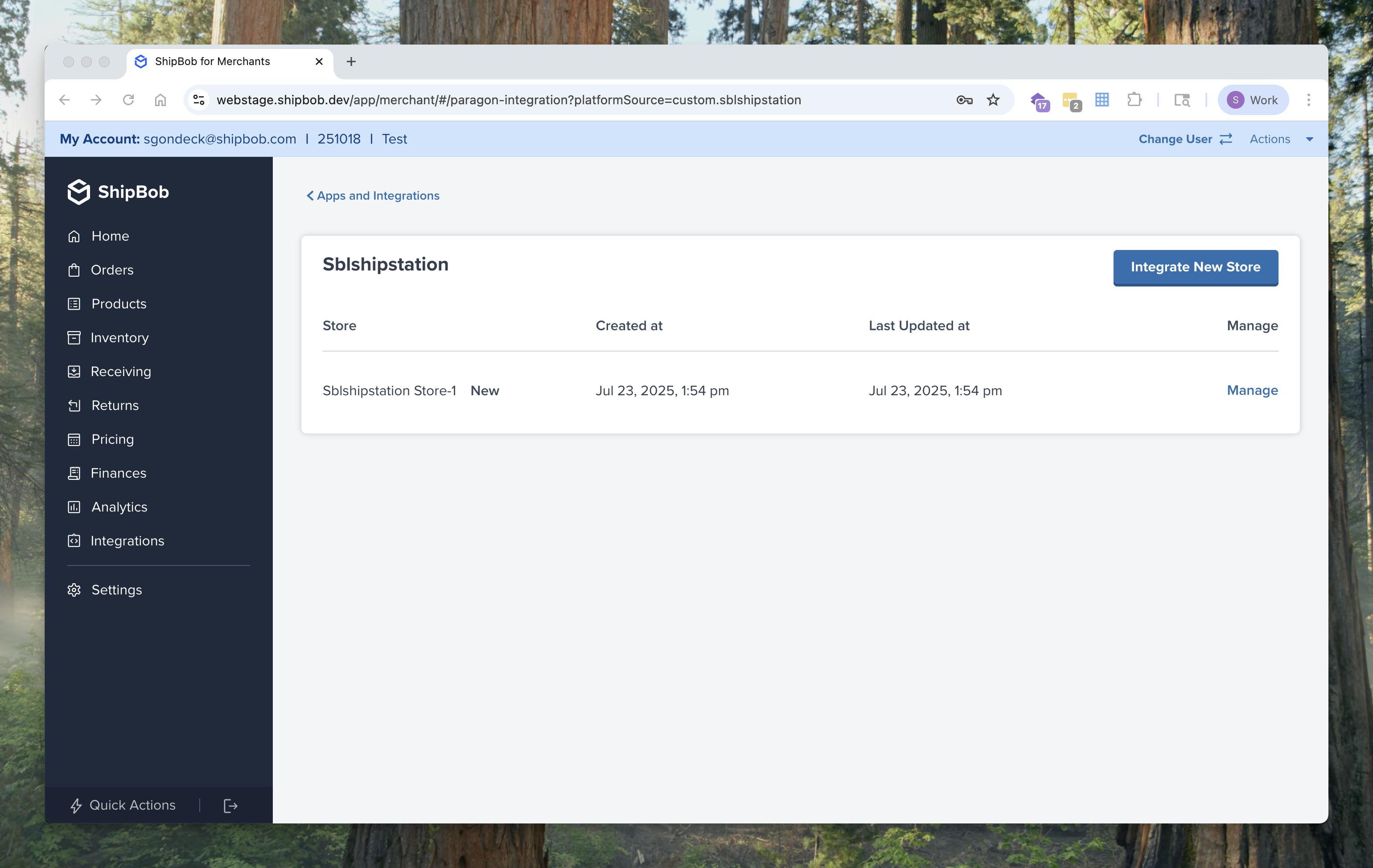
- Click Manage to configure integration settings.
Configure Integration Settings
Fill in the integration fields as follows:
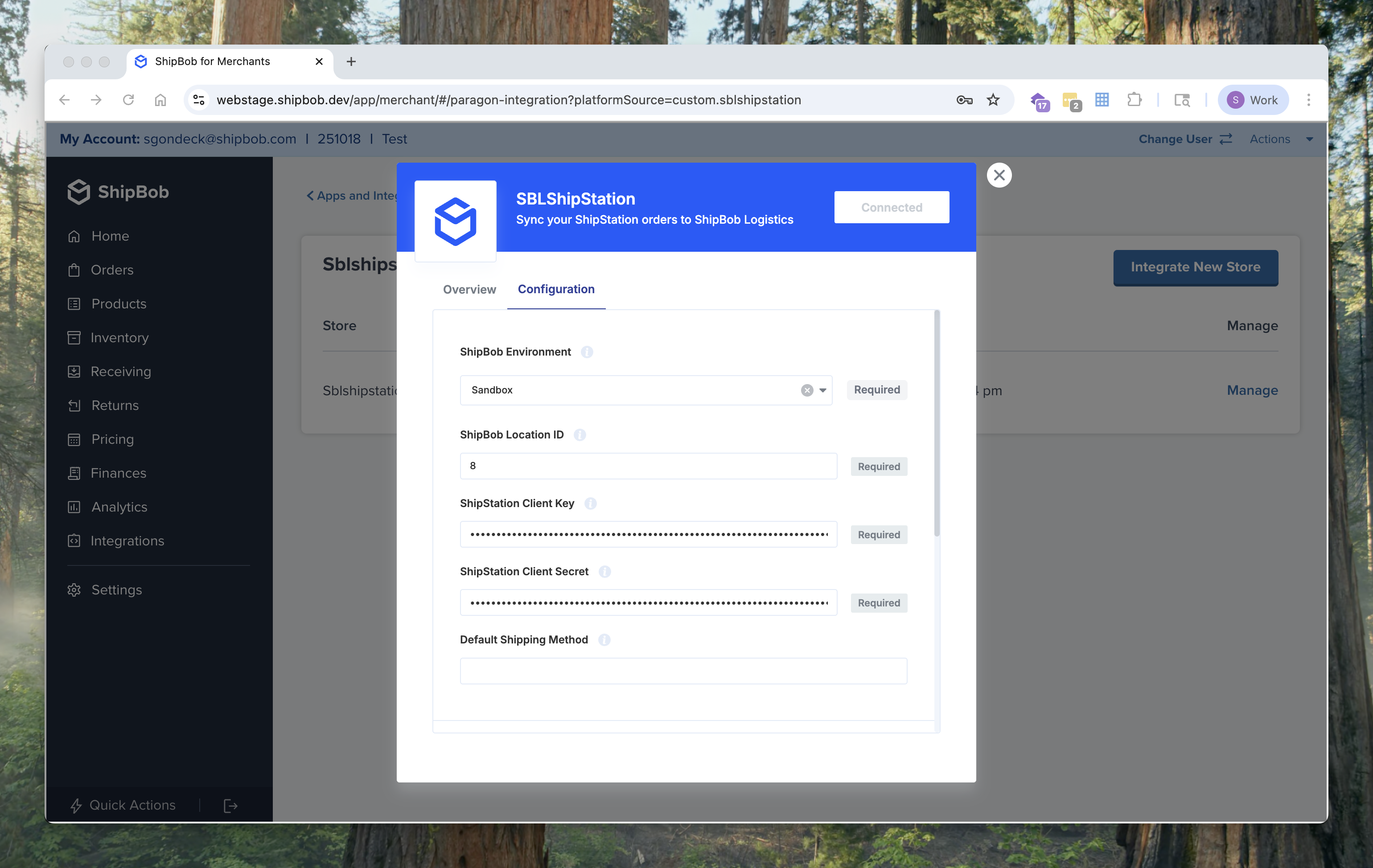
- ShipBob Environment:
- Choose
Productionif using production environment. - Choose
Sandboxif using test environment.
- Choose
- ShipBob Location ID:
- For production, contact ShipBob team member to get your Location ID.
- Use location ID
19for sandbox.
- ShipStation Client Key: Your ShipStation API Client Key. See FAQ for how to find.
- ShipStation Client Secret: Your ShipStation API Client Secret. See FAQ for how to find.
- Default Shipping Method: Enter a default shipping service (shipping method) to be applied to all orders. If this dropdown is left blank, the integration will use whichever service is on the order in ShipStation.
- Include Packing Slip: Select YES if you would like a packing slip sent to your print station alongside the SBL label.
- Require Signature on Delivery: Select YES if you require your shipments to be signed upon delivery. If YES is selected, ShipBob will rate-shop all orders with the signature required option. Additional fees will apply.
- Insurance Amount: Enter a whole number in this field to define an insurance amount to be used when rate shopping. Note that additional fees will be applied when insurance amount is applied.
- Sync All Orders to ShipBob Logistics: Enable this option to pull ALL orders from ShipStation that are in Awaiting Shipment status. If you would like to filter by tag, leave this option turned off and select the “Orders by Tag” option instead.
- Sync Orders by Tag to ShipBob Logistics: Sync specific tagged orders from ShipStation to ShipBob Logistics. Orders without this tag will be ignored.
- Tag Name: Enter the name of the tag exactly how it appears in your ShipStation account. This field is case sensistive. For example, if your tag name is
ShipBobdo not useshipbob.
- Tag Name: Enter the name of the tag exactly how it appears in your ShipStation account. This field is case sensistive. For example, if your tag name is
- Sync Tracking to ShipStation: Sync final-mile carrier tracking information to ShipStation and mark the ShipStation order as “Shipped”.
⚠️ Important:
If you’re using a live ShipStation account with a ShipBob sandbox environment, do not enable Sync Tracking. This could result in fulfillment actions from sandbox affecting your live orders.
Testing
- In ShipStation, tag or create test orders to verify syncing with ShipBob Logistics.
- Confirm that the orders appear in the ShipBob dashboard (sandbox or production depending on your environment).
FAQ
How do I find my ShipStation API keys?
- Login to ShipStation
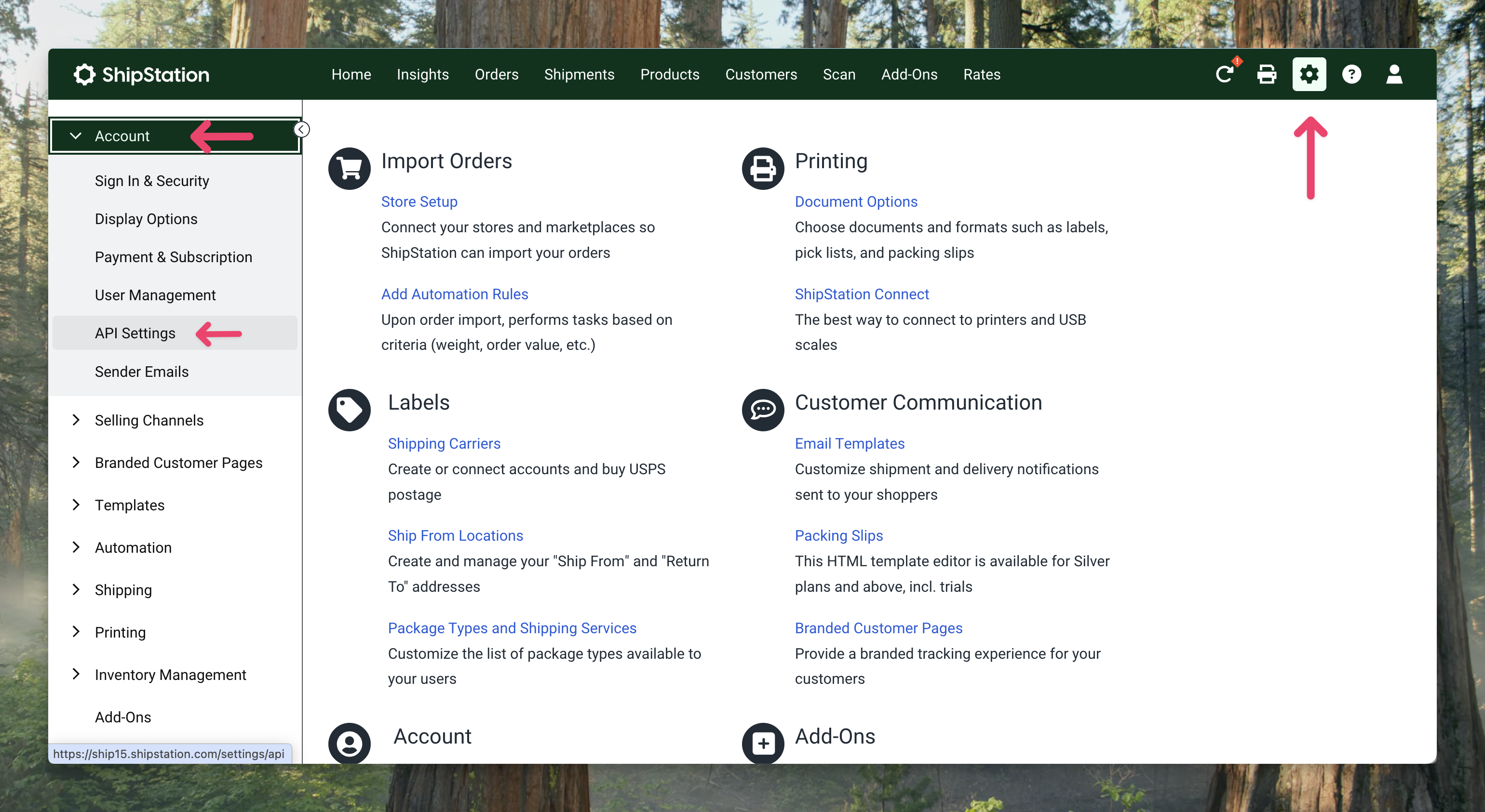
- Click the gear icon in the top right hand corner. Next, click the Account dropdown > API Settings.
- Click Generate API Key
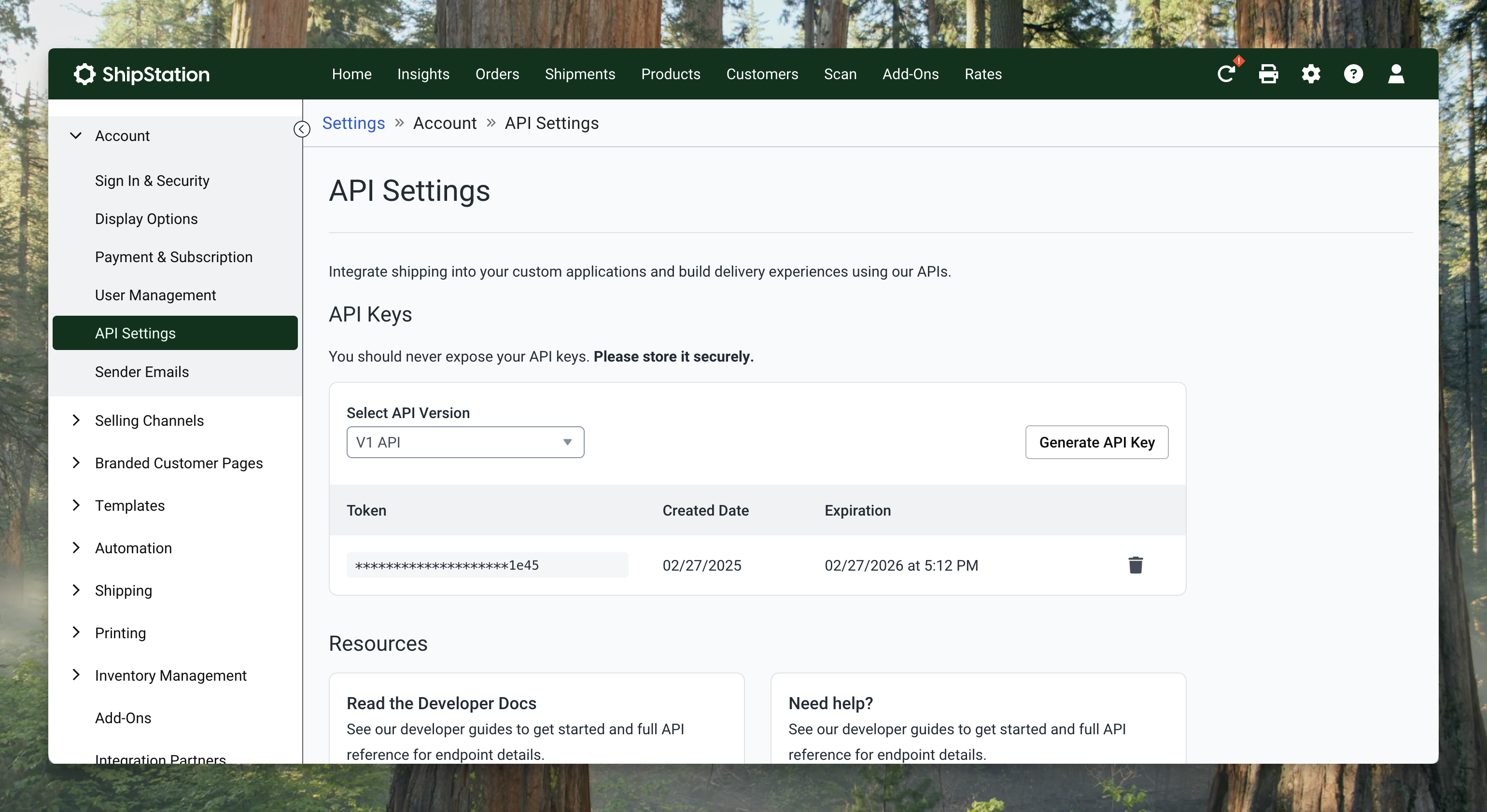
- Copy the API Key and Secret Key
Why are orders not syncing over from ShipStation?
Here are some troubleshooting tips:
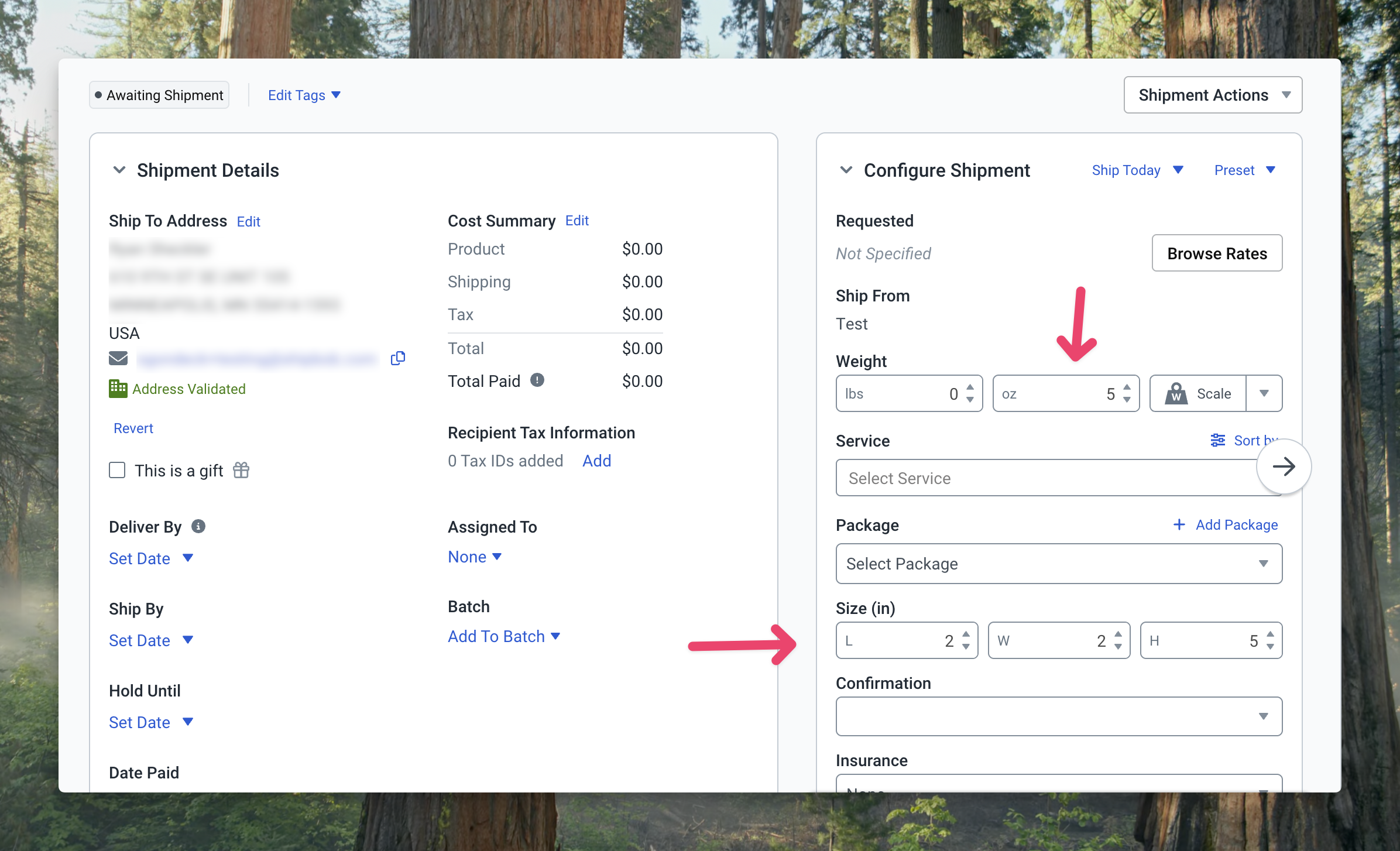
- Check that each order has Weight and Length / Width / Height set
- If you are syncing orders based on a tag, make sure the order is tagged.
- Make sure the order has a email address set.
How to add weight and dimensions to products in ShipStation?
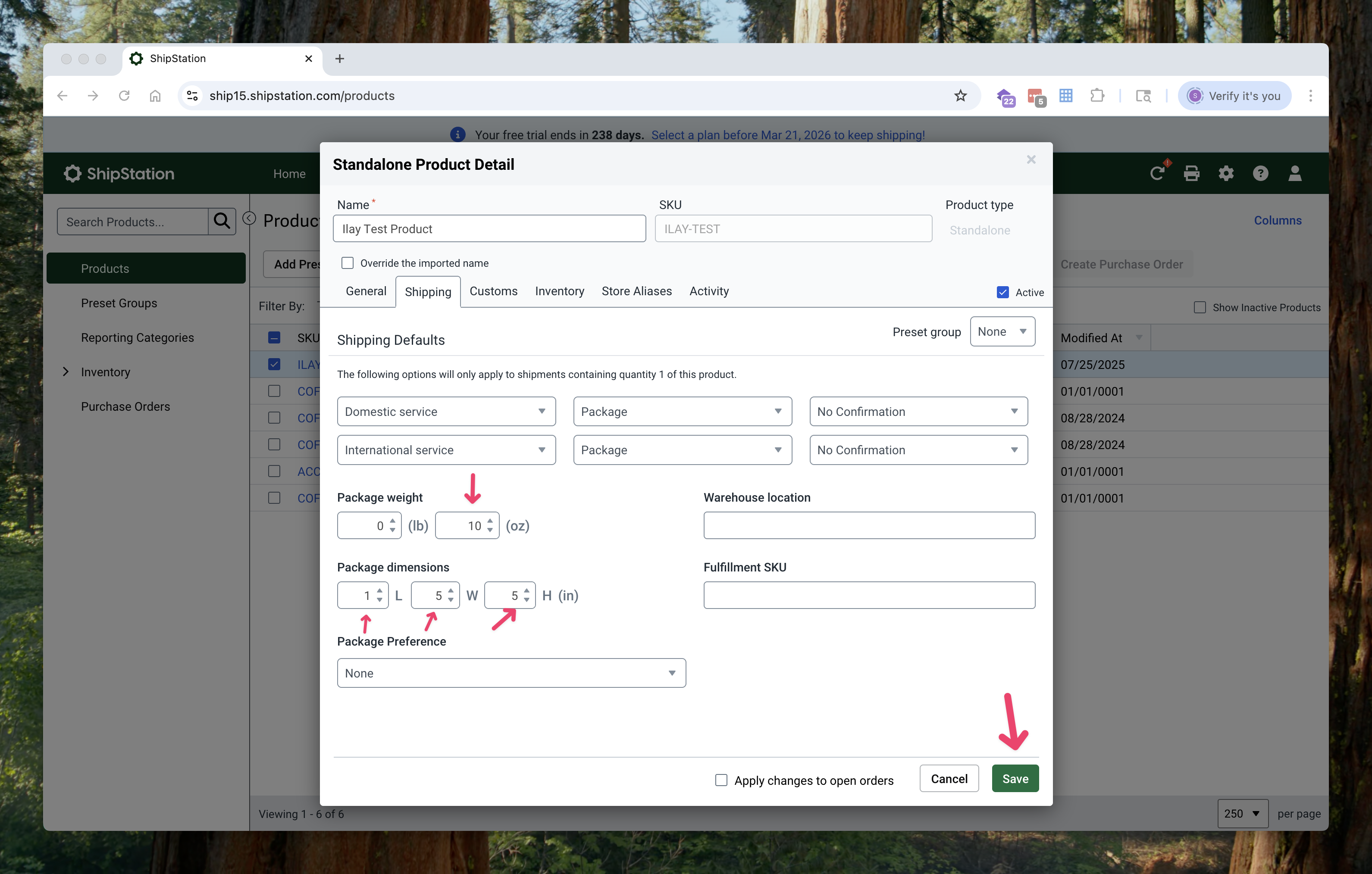
To automate your shipping process, we recommend adding the weight and dimensions to each of your products in ShipStation.
- In ShipStation, go to the Products section.
- Select the product you’d like to update.
- Click the Shipping tab.
- Enter the Package Weight and Package Dimensions (Length, Width, and Height).
- Click Save.
How often does the integration run?
Both the Order sync and Tracking sync runs every 5 minutes.
How do I update integration?
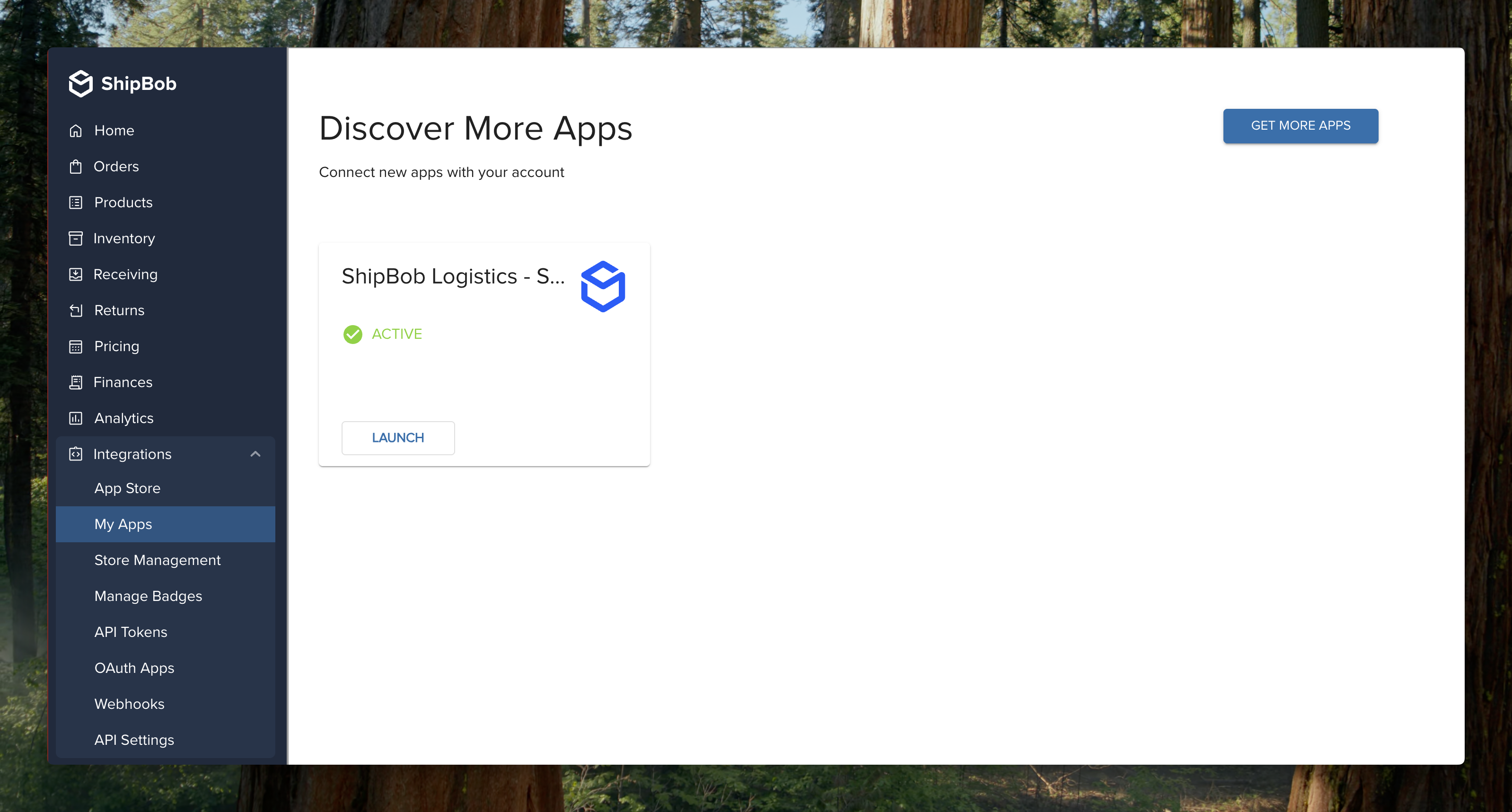
- Log into your ShipBob Dashboard, then navigate to Integrations → My Apps.
- Locate the “ShipBob Logistics – ShipStation” integration and click Launch.
- Click Manage Settings → Manage to access the configuration panel.
Need Help?
If you encounter issues or need assistance, please contact the ShipBob support team.