

Build an Orders Integration
Overview
The ShipBob Orders API enables you to programmatically create orders, retrieve tracking information, and manage fulfillment. This guide walks you through building a complete orders integration.
Before you begin, ensure:
- Your API key has the
orders_writeandorders_readaccess scopes - You have your ShipBob channel ID (get it here)
How It Works
Here’s the complete order lifecycle from creation to delivery tracking:
Step 1: Create an Order
Use the Create Order endpoint to create an order.
shipbob_channel_id in the request header. This identifies which channel the order belongs to.What you’ll get back:
The response returns information about the order and associated shipments, including the shipment IDs, line items, and the assigned fulfillment center.
The reference_id field is your idempotency key. If ShipBob receives two identical requests with the same reference_id + shipbob_channel_id, it will return a 422 error.
Step 2: Retrieve Tracking Details
ShipBob offers two workflows for retrieving shipment details:
Webhooks
ShipBob can fire webhooks for shipment events including:
order.shipped- First tracking details become available after label purchase/print.order.shipment.tracking.updated- Ongoing carrier status changes (InTransit,OutForDelivery,Delivered, etc.).order.shipment.delivered- Final delivery confirmation.order.delivered- Order-level delivery confirmation (fires when all shipments on the order are delivered).order.shipment.exception- Shipment moved to exception state (for example, out-of-stock).order.shipment.on_hold- Shipment blocked due to missing/invalid data.order.shipment.cancelled- Shipment was cancelled.
How to subscribe:
- Via Dashboard: Go to Integrations > Webhooks > Add Subscription
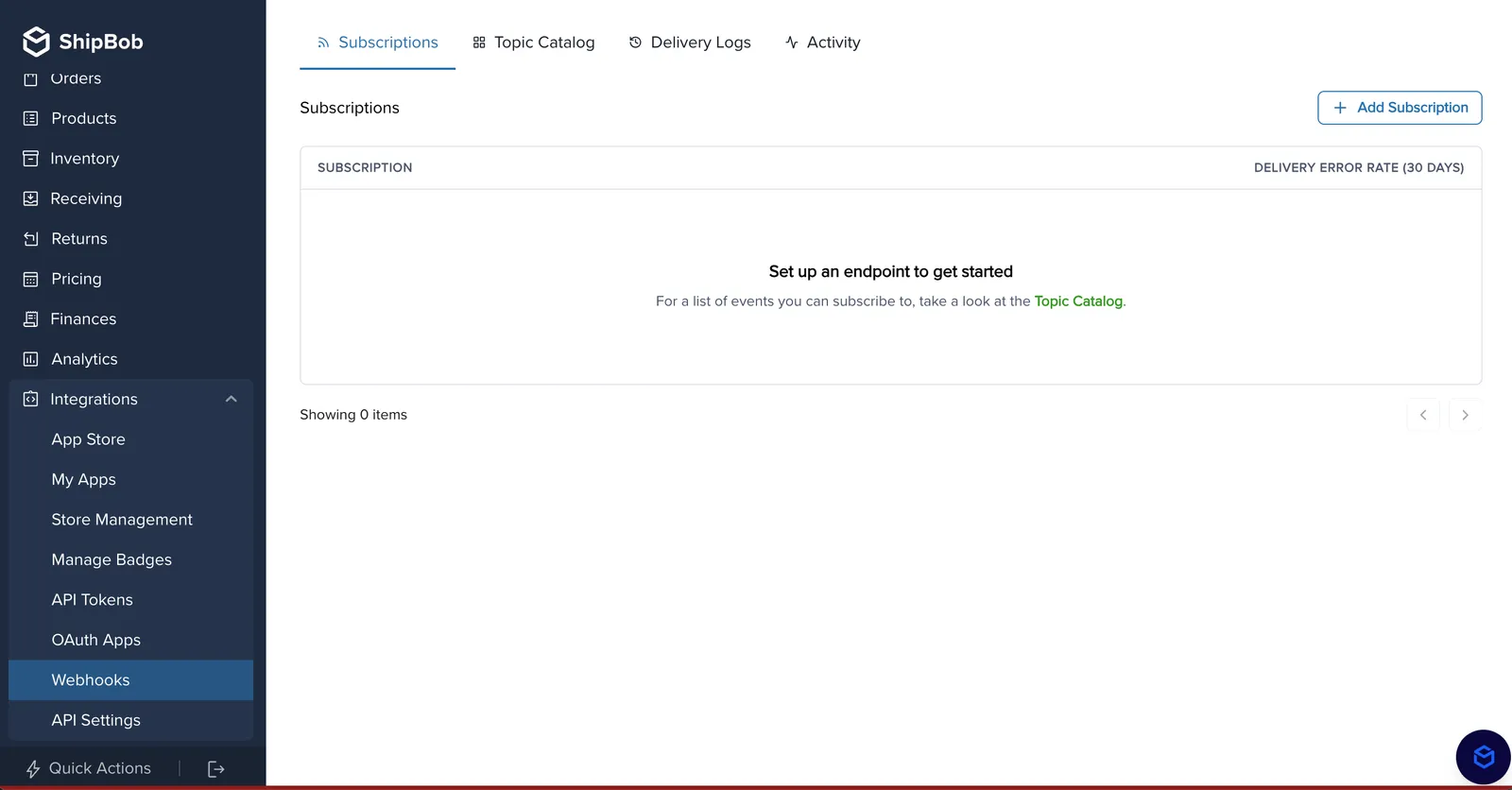
- Via API: Use the Create Webhook Subscription endpoint
Learn more in the Webhooks documentation.
ShipBob uses exponential backoff to retry webhook delivery for up to 24 hours, but cannot guarantee events arrive in the original sequence. Always check timestamps when processing webhooks.
Polling
Poll the GET Orders endpoint on a recurring schedule (every 15-30 minutes).
Key parameters:
HasTracking- Filter for orders where tracking is available (shipment has been labeled)IsTrackingUploaded- Use as a sync flag. Set tofalseto find unsynced orders
Recommended Request
Get all orders that have been shipped but not uploaded to your system. Look at the total-count or total-pages parameter in the header of the response to determine if you need to use pagination.
Workflow:
Pass the shipbob_channel_id header to only retrieve orders from your integration channel, avoiding data from other integrations the merchant may have installed.
Understanding split shipments:
An order can have multiple shipments if:
- Inventory is stocked in multiple fulfillment centers
- Items don’t fit in one box due to size/weight
When a shipment has tracking, its status will be LabeledCreated, which quickly transitions to Completed. Always loop through the shipments[] array in the order response.
Example: Order with split shipments
For complete order and shipment status details, see the Status Reference.
Step 3: Mark Tracking as Synced
After syncing tracking to your system, mark shipments as uploaded to prevent re-processing:
This updates the IsTrackingUploaded flag so future queries with IsTrackingUploaded=false won’t return these shipments.
Retrieve Orders and Shipments
Get a specific order:
Get a specific shipment:
id is in the shipments array.Search for Orders
Use query parameters on the GET Orders endpoint to search for orders.
Common search queries:
Get orders with tracking that haven’t been synced:
Example: Search by reference_id:
Example: Get all orders for November 2025:
Cancel an Order
You can cancel orders and shipments that haven’t been picked, packed or shipped yet using the Cancel Order endpoint.
Once a shipment is Picked, it cannot be cancelled. The order has already been physically picked from the warehouse shelves.
Cancel an Entire Order
Example request:
Cancel Individual Shipments
If an order has multiple shipments and you only want to cancel specific ones:
Example request:
Important Fields
reference_id - Your unique order identifier. Acts as an idempotency key - duplicate reference_id + shipbob_channel_id combinations return a 422 error.
order_number - User-friendly order number for customer service. Does not need to be unique (can match reference_id).
shipping_method - Value like “Standard”, “Expedited”, or “2-Day”. Merchants map this to ShipBob Ship Options that determine SLA and carrier selection. See Ship Options guide.
type - Order type:
DTC- Direct-to-consumer orders (most common)B2B- Business-to-business orders (see B2B Orders guide)
shipbob_channel_id (header) - Identifies which channel the order belongs to. Get your channel ID from the GET Channels endpoint.
products.reference_id - SKU or unique product identifier. Must match a product created in ShipBob (see Product Management Guide).
IsTrackingUploaded - Boolean flag indicating if you’ve synced the tracking to your system. Use this to prevent duplicate processing.
Common Issues
422 error: Duplicate reference_id
Each order must have a unique reference_id within a channel. If you need to resubmit, use a different reference_id or cancel the original order first.
Invalid shipping address
Ensure required fields are provided: address1, city, country (ISO Alpha-2 code), and ideally state and zip_code.
How to find my channel ID?
Call the GET Channels endpoint. Look for the channel with _write scopes — that’s your integration channel.
Order stuck in Exception or On Hold status
Check the status_details field in the shipment for specific reasons. Common causes: out of stock, invalid address, missing customs info. See Status Reference for details.
Tips
- Poll every 15-30 minutes - Don’t check more frequently than every 5 minutes to avoid rate limits
- API rate limit - 150 requests per minute
- Always use
shipbob_channel_idheader - Prevents retrieving orders from other integrations - Use webhooks + polling fallback - Webhooks for real-time updates, polling as a safety net
- Handle split shipments - Always loop through
order.shipments[]and sync each tracking number separately - Mark tracking as uploaded - Use the
batchUpdateTrackingUploadendpoint to avoid re-processing - If your integration receives unexpected edit or update requests to orders after creation, consider implementing a 1-hour delay before sending orders to ShipBob