

Webhooks
ShipBob webhooks automatically notify your app when key events occur, allowing you to keep your data in sync.
Getting Started
Key Concepts
- Subscription: A request to receive webhook notifications at a specified URL.
- Subscription URL: The endpoint where webhook data is sent.
- Event: A trigger that generates webhook data (e.g., an order being shipped).
- Topic: The category of event data being sent.
- Payload: The actual event data sent in the webhook.
- Response: A
2XXHTTP response is required to confirm webhook receipt.
Common Use Cases
- ✅ Real-time Order Tracking - Use
order.shippedfor first tracking availability andorder.shipment.tracking.updatedfor downstream carrier status changes. - ✅ Order Completion Detection - Use
order.deliveredto detect when all shipments on an order have been delivered. - ✅ Shipment Mutation Sync - Use
order.shipment.address.updated,order.shipment.line_item.added,order.shipment.line_item.removed, andorder.shipment.line_item.updatedto keep shipment data in sync after creation. - ✅ Service-Level Change Detection - Monitor
order.shipment.shipping_service.updatedto track shipping service changes and rollback events. - ✅ Inventory Risk Monitoring - Monitor
order.shipment.exceptionevents to detect and respond to stock shortages. - ✅ Receiving Workflow Automation - Use
wro.created,wro.updated,wro.completed,wro.box.arrived,wro.box.scanned, andwro.box.stowedto automate inbound inventory workflows. - ✅ Return Lifecycle Notifications - Use
return.created,return.updated, andreturn.completedto keep your returns state synchronized. - ✅ Billing Event Reconciliation - Use
billing.charge.created,billing.refund.created, andbilling.credit.createdto reconcile invoices and credits in near real time.
Webhook Topics & Events
Webhook topics for 1.0 and 2.0 versions
Webhook Headers
ShipBob sends webhook notifications with the following headers:
Webhook headers for 1.0 and 2.0 versions
Verifying Signatures
Each webhook call includes three headers used for verification:
- webhook-id: The unique message identifier for the webhook message. This identifier is unique across all messages, but will be the same when the same webhook is being resent (e.g. due to a previous failure)
- webhook-timestamp: Unix timestamp in seconds (seconds since epoch).
- webhook-signature: A space-delimited list of signatures, where each signature value is base64-encoded and may include a version prefix.
Constructing the signed content
The content to sign is composed by concatenating the id, timestamp and payload, separated by the full-stop character (.). In code, it will look something like:
Where body is the raw request body. The signature is sensitive to any changes, so even a small change in the body will cause the signature to be completely different. This means that you should not change the body in any way before verifying.
Determining the expected signature
ShipBob uses HMAC with SHA-256 to sign the webhooks.
To calculate the expected signature, you should HMAC the signed_content from above using the base64-decoded bytes of your signing secret as the key. Specifically, take the portion after the whsec_ prefix, base64-decode it, and use the decoded bytes as the HMAC key. For example, given the secret whsec_MfKQ9r8GKYqrTwjUPD8ILPZIo2LaLaSw, you would base64-decode MfKQ9r8GKYqrTwjUPD8ILPZIo2LaLaSw and use the resulting bytes as the key.
For example, this is how you can decode the secret and calculate the signature in Node.js:
This generated signature should match one of the signatures sent in the webhook-signature header.
Understanding the webhook-signature header
The webhook-signature header is composed of a list of space-delimited signatures and their corresponding version identifiers. The signature list is most commonly of length one, though there could be any number of signatures. For example:
Be sure to remove the version prefix (e.g. v1,) before verifying the signature.
Security Note: It is recommended to use a constant-time string comparison method in order to prevent timing attacks.
Webhook Payloads
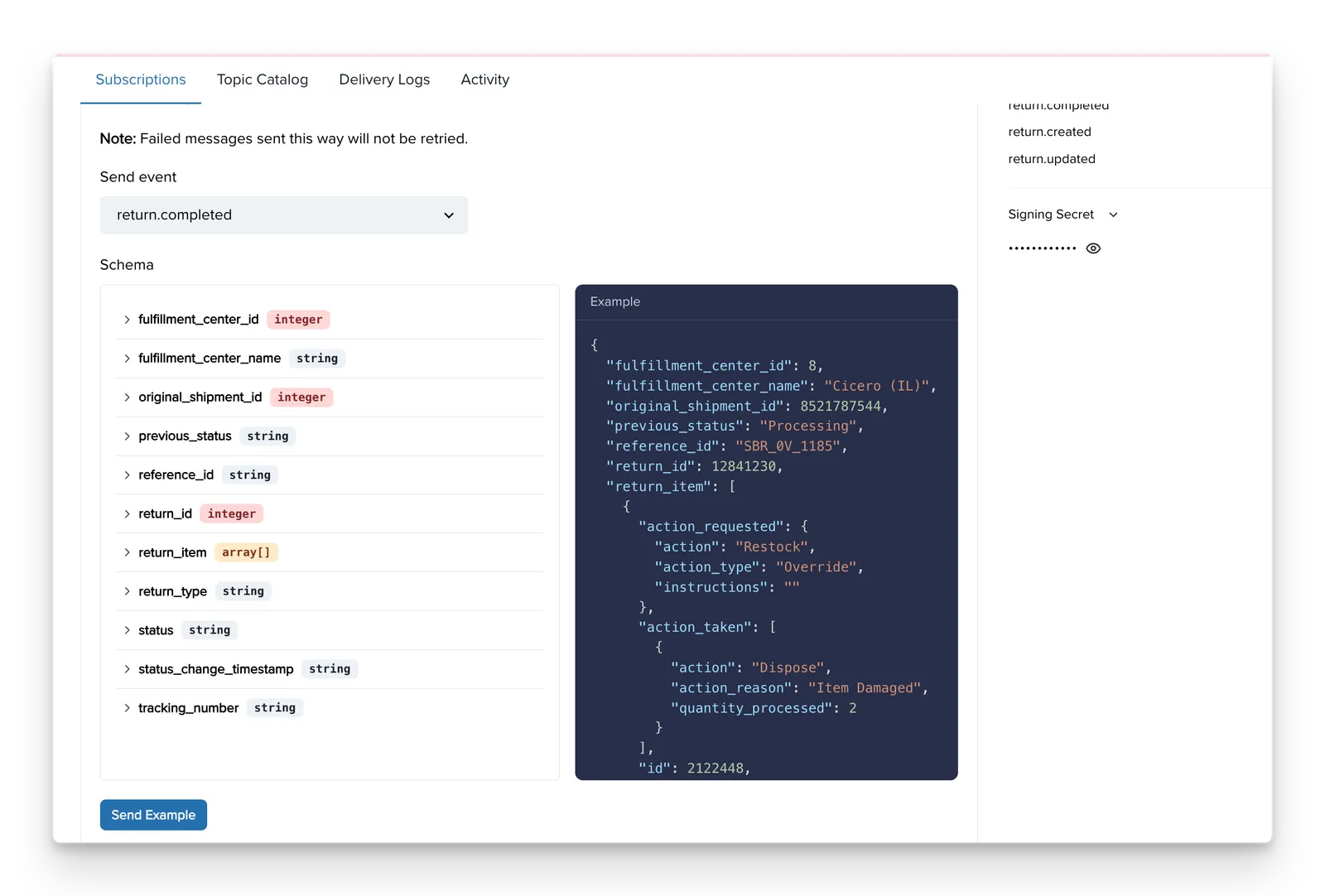
✨ The best way to see examples of webhook payloads is to create a webhook in the ShipBob Dashboard by going to:
Integrations → Webhooks → Create new subscription.
- Add your subscription URL — this is the endpoint on your server where ShipBob will send the webhook data.
- Select a topic — choose an event type such as
order.shippedorreturn.completed. - Click “Send example” — ShipBob will immediately send a sample JSON payload to your URL so you can preview the structure.
This approach makes it easy to test your integration, validate your endpoint, and understand the exact payload format without waiting for a real event to occur.
Retry Schedule
Each message is attempted based on the following schedule, where each period is started following the failure of the preceding attempt:
- Immediately
- 5 seconds
- 5 minutes
- 30 minutes
- 2 hours
- 5 hours
- 10 hours
- 10 hours (in addition to the previous)
If an endpoint is removed or disabled delivery attempts to the endpoint will be disabled as well.
For example, an attempt that fails three times before eventually succeeding will be delivered roughly 35 minutes and 5 seconds following the first attempt.
Indicating successful delivery
The way to indicate that a webhook has been processed is by returning a 2xx (status code 200-299) response to the webhook message within a reasonable time-frame (15s). Any other status code, including 3xx redirects are treated as failures.
Failed delivery handling
After the conclusion of the above attempts the message will be marked as Failed for this endpoint, and the webhook sender’s account will get email notification for notifying them of this error.
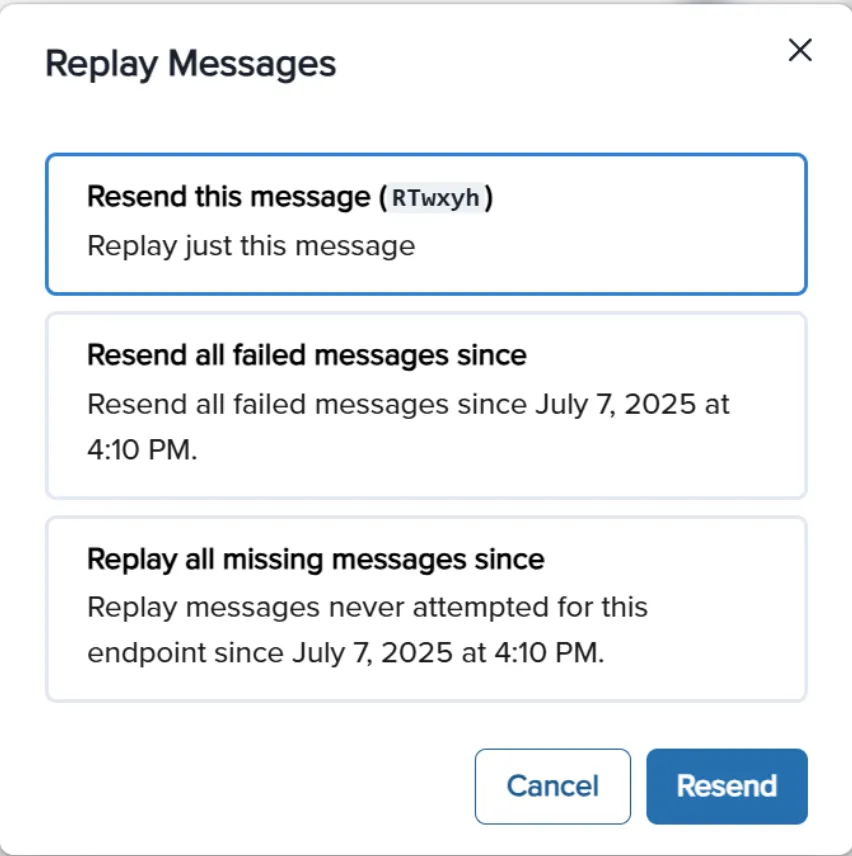
Manual retries
You can also use the application portal to manually retry each message at any time, or automatically retry (“Recover”) all failed messages starting from a given date.
Disabling failing endpoints
If all attempts to a specific endpoint fail for a period of 5 days, the endpoint will be disabled and an email will be sent to the account owner. The clock only starts after multiple deliveries fail within a 24-hour span, with at least 12 hours difference between the first and the last failure.
Static Source IP Addresses
In case your webhook receiving endpoint is behind a firewall or NAT, you may need to allow traffic from static IP addresses.
This is the full list of IP addresses that webhooks may originate from.
Best Practices
✅ Use HTTPS - Subscription URLs must support SSL. Use RequestBin for testing if needed.
✅ Implement Redundancy - Webhooks may be delayed or lost. Use GET endpoints to periodically reconcile data.
✅ Retry Handling - Events may arrive out of order due to retries—handle them as independent updates.
✅ Use Idempotency - Store webhook event ids and discard duplicates to prevent redundant processing.
✅ Logging & Monitoring - Log webhook requests and responses to diagnose issues.
Troubleshooting Guide
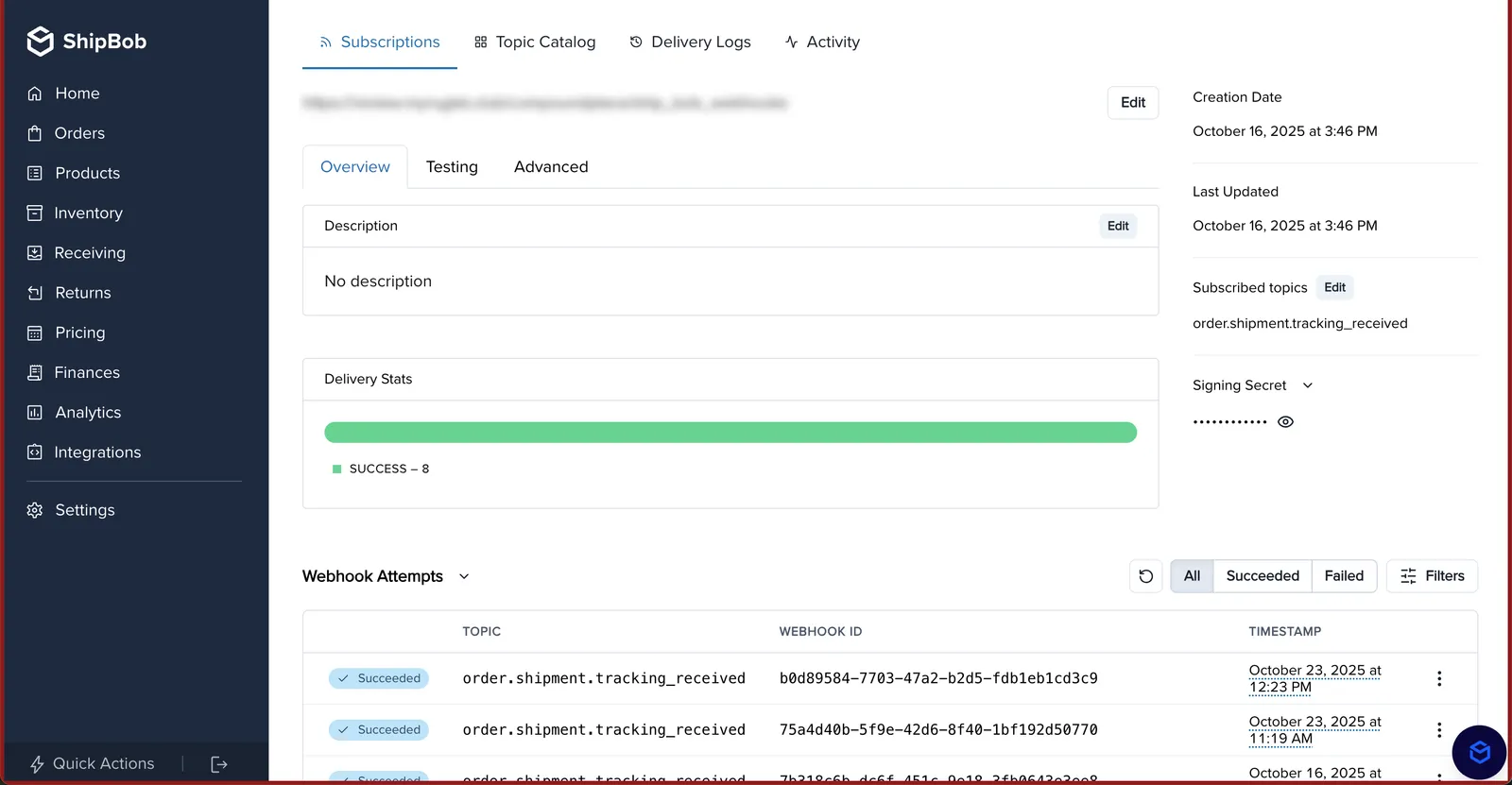
How can I view webhooks logs and retry failed events?
Yes, you can view webhook logs in the ShipBob dashboard by going to Integrations > Webhooks. Then, click into your webhook and you will be able to see logs at the bottom of the page.
Webhook Not Triggering?
- Ensure your subscription URL is correct and publicly accessible.
- Confirm your app
returns a 2XX responseto ShipBob’sPOSTrequest. - Verify that your app
has the correct webhooks_read or webhooks_write permissions.
Webhook Retries Are Overloading My Server
- Ensure your system processes events efficiently and responds within 5 seconds.
- Return a
2XXresponse before doing heavy processing.
Webhook Data is Out of Order
- Use timestamps from the payload to sort events properly.
- Handle events individually, rather than relying on strict order.
Receiving Duplicate Events?
- Webhooks are not guaranteed to be sent only once.
- Implement idempotency checks: Store received event IDs and ignore duplicates.