

Setup Sandbox Account
Our sandbox accounts allow you to test your integration with realistic, production-like data. Think of it as a practice run - everything works like the real thing, but no actual shipments are made.
Our sandbox accounts are separate environments and data cannot be transferred over to production.
Step 1: Create sandbox account
- Sign up for our Sandbox environment, here.
- Validate your email address to activate your account.
Step 2: Add a test payment method
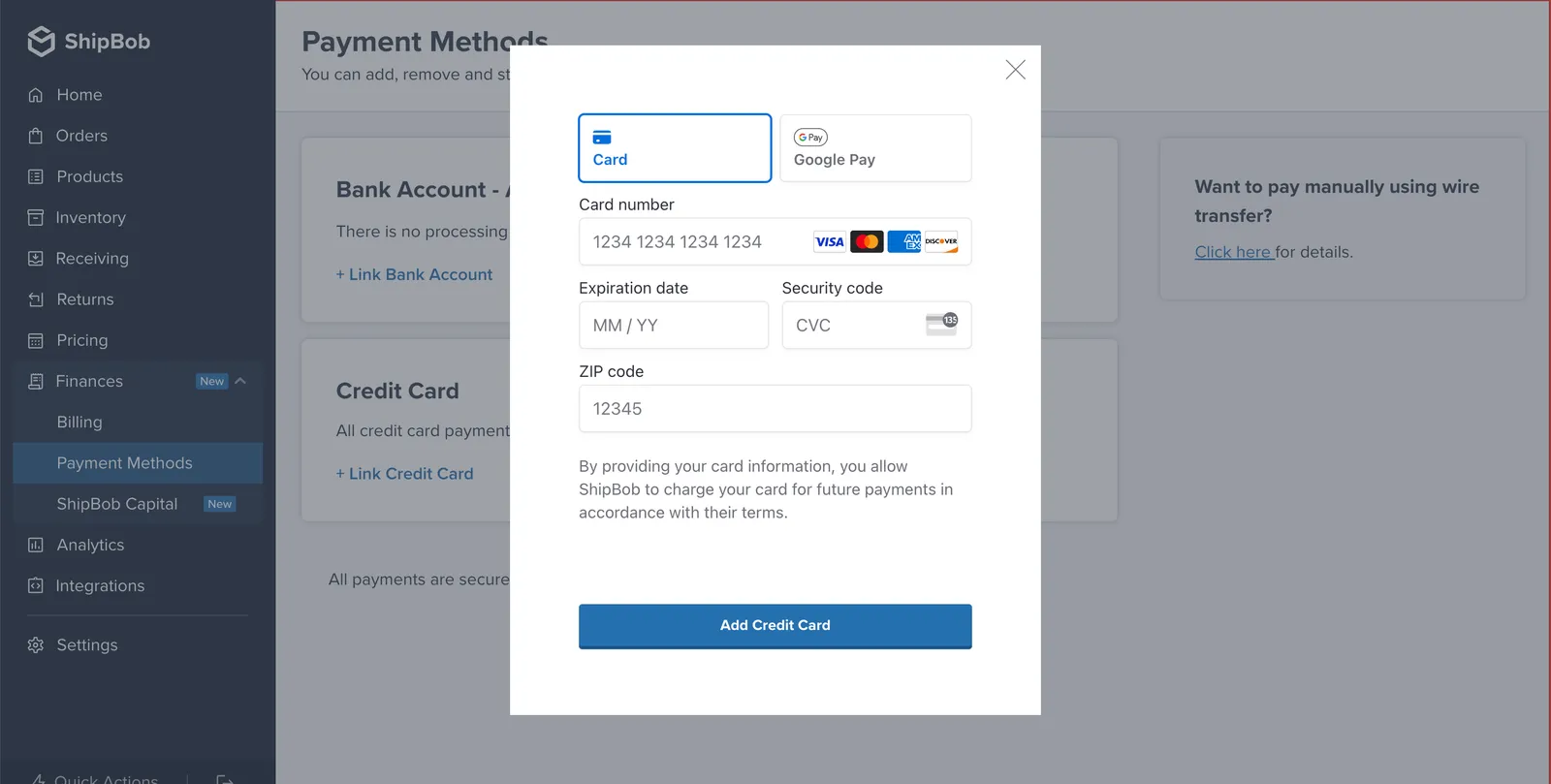
Add a test payment method so when you create new orders the orders do not go OnHold due to payment failure.
- Navigate to Finances > Payment Methods in the ShipBob dashboard
- Click Link Credit Card.
- Enter the following details:
- Card Number:
4111 1111 1111 1111 - CVC: Any 3-digit number
- Expiration Date: Any future MM/YY
- Zip Code: Any valid zip code
- Card Number:
- Click Add Credit Card.
Credit card entry form
Step 3: Get API key
ShipBob verifies a user’s request by using a Bearer token in the header. We call this a Personal Access Token.
On the ShipBob dashboard, go to Integrations > API Tokens. Click Generate New Token. Copy this token as we will use in next step.
Step 4: Make your first API request
Use your PAT token to make a request to the GET Channels endpoint. You will need the channel ID to create products, orders and returns with the ShipBob API.
Example response
The channel ID to use when creating products, orders and returns would be 100102 since this is the channel that has scopes with _write access.
Step 5: Create product
Below is a sample request to create a product:
Make sure to pass the shipbob_channel_id in the header.
Step 6: Create Order
Below is a sample request to create a order:
Make sure to pass the shipbob_channel_id in the header.
You can also test making this request in our API Playground here.
Step 7: Add inventory
If you want to add test inventory quantities to your products please email support@shipbob.com with your request and the email tied to your Sandbox account.
Step 8: Add packaging preferences (optional)
Set these up in the ShipBob dashboard under Products > [Your Product] > Packaging Preferences.
If you are using the 1.0/product endpoint you have to do this manually for each product in your sandbox account.
✅ Next Steps
Ready to test fulfillment workflows?
Check out our Sandbox Simulations guide to simulate order shipping and delivery events in your sandbox environment.