***
title: Setup Sandbox Account
sidebarTitle: Setup
description: Learn how to setup a sandbox account on ShipBob
last-updated: 'February 24, 2026'
---------------------------------
Our sandbox accounts allow you to test your integration with realistic, production-like data. Think of it as a practice run - everything works like the real thing, but no actual shipments are made.
Our sandbox accounts are separate environments and data cannot be transferred over to production.
## Step 1: Create sandbox account
* Sign up for our Sandbox environment, [**here**](https://webstage.shipbob.dev/app/merchant/#/SignUp?utm_source=app_partner).
* Validate your email address to activate your account.
## Step 2: Add a test payment method
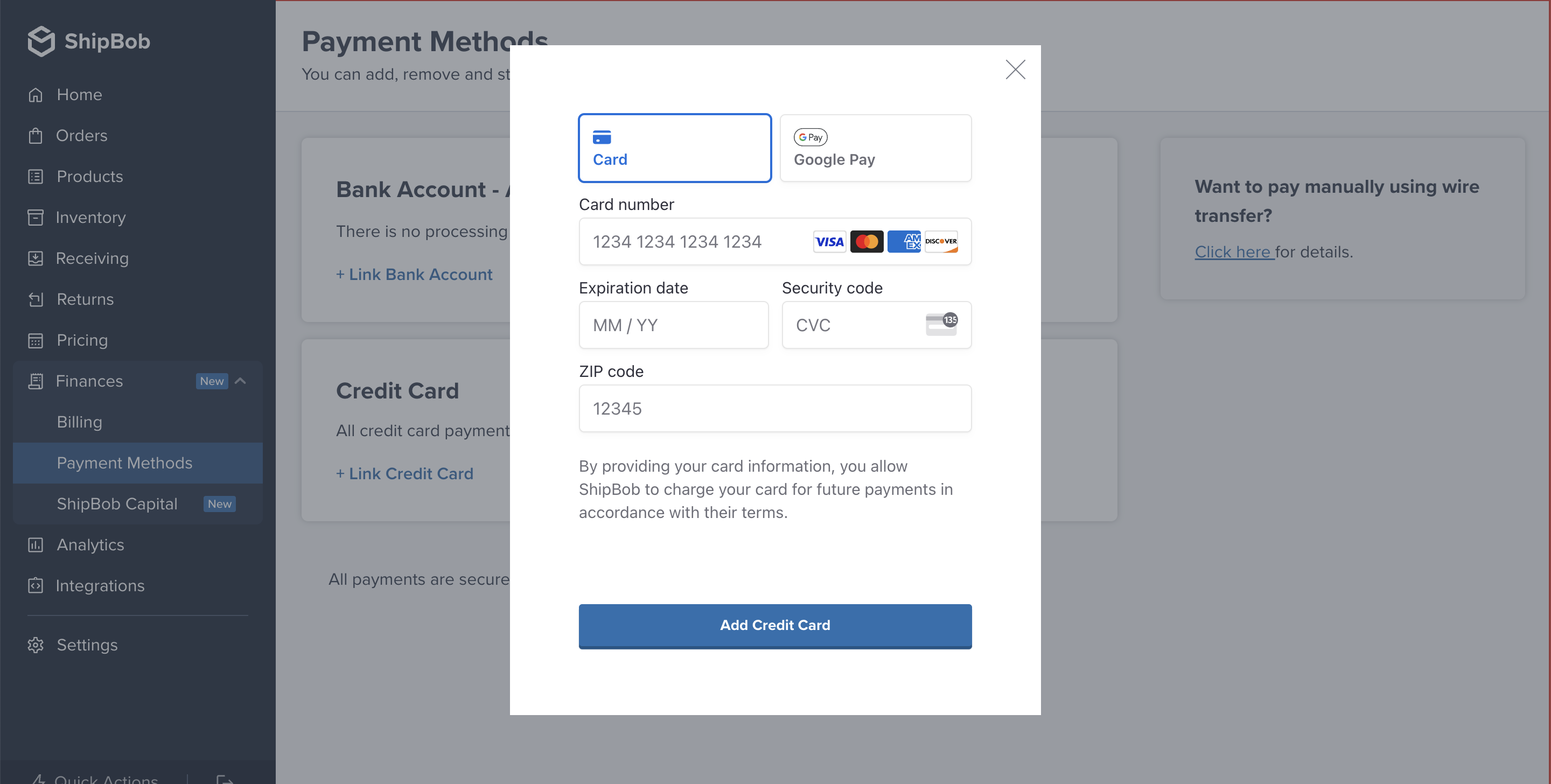
Add a test payment method so when you create new orders the orders do not go OnHold due to payment failure.
1. Navigate to **Finances > Payment Methods** in the ShipBob dashboard
2. Click **Link Credit Card**.
3. Enter the following details:
* **Card Number**: `4111 1111 1111 1111`
* **CVC**: Any 3-digit number
* **Expiration Date**: Any future MM/YY
* **Zip Code**: Any valid zip code
4. Click **Add Credit Card**.
*Credit card entry form*
## Step 3: Get API key
ShipBob verifies a user’s request by using a Bearer token in the header. We call this a Personal Access Token.
On the ShipBob dashboard, go to **Integrations** > **API Tokens**. Click **Generate New Token**. Copy this token as we will use in next step.
## Step 4: Make your first API request
Use your PAT token to make a request to the [GET Channels](/api/channels/get-channels) endpoint. You will need the channel ID to create products, orders and returns with the ShipBob API.
```
GET https://sandbox-api.shipbob.com/2026-01/channel
```
The channel ID to use when creating products, orders and returns would be `100102` since this is the channel that has scopes with `_write` access.
```json GET Channel 2.0/channel {3,4,5,6,7,8,9,10,11,12,13,14,15,16,17,18,19,20,21,22,23,24}
[
{
"id": 100102,
"name": "Privileged Access Token Wednesday, September 20, 2025",
"application_name": "SMA",
"scopes": [
"fulfillments_write",
"webhooks_read",
"returns_read",
"orders_read",
"inventory_write",
"inventory_read",
"returns_write",
"products_read",
"webhooks_write",
"receiving_write",
"receiving_read",
"channels_read",
"products_write",
"locations_read",
"orders_write",
"fulfillments_read",
"locations_write"
]
},
{
"id": 100101,
"name": "ShipBob Default",
"application_name": "ShipBob",
"scopes": [
"webhooks_read",
"returns_read",
"orders_read",
"inventory_read",
"products_read",
"receiving_read",
"channels_read",
"locations_read",
"fulfillments_read"
]
}
]
```
## Step 5: Create product
Below is a sample request to create a product:
Make sure to pass the `shipbob_channel_id` in the header.
```javascript POST sandbox-api.shipbob.com/2026-01/product
{
"name": "Light Roast Coffee",
"type_id": 1,
"variants": [
{
"name": "Light Roast Coffee",
"sku": "LIGHT-ROAST",
"packaging_requirement_id": 1,
"packaging_material_type_id": 1
}
]
}
```
## Step 6: Create Order
Below is a sample request to create a order:
Make sure to pass the `shipbob_channel_id` in the header.
```javascript POST https://sandbox-api.shipbob.com/2026-01/order
{
"shipping_method": "Standard",
"recipient": {
"name": "John Doe",
"address": {
"address1": "100 Nowhere Blvd",
"address2": "Suite 100",
"city": "Gotham City",
"state": "NJ",
"country": "US",
"zip_code": "07093"
},
"email": "john@example.com",
"phone_number": "555-555-5555"
},
"products": [
{
"reference_id": "LIGHT-ROAST",
"name": "Light Roast Coffee",
"quantity": 1,
}
],
"reference_id": "840343901234", // the reference_id can be the same as the order_number
"order_number": "1001",
"type": "DTC",
}
```
You can also test making this request in our API Playground [here](/api/orders/create-order?explorer=true).
## Step 7: Add inventory
If you want to add test inventory quantities to your products please email `techspecialists@shipbob.com` with your request and the email tied to your Sandbox account.
## Step 8: Add packaging preferences (optional)
Set these up in the ShipBob dashboard under **Products** > **\[Your Product]** > **Packaging Preferences**.
If you are using the 1.0/product endpoint you have to do this manually for each product in your sandbox account.
## ✅ Next Steps
Ready to test fulfillment workflows?
Check out our [Sandbox Simulations guide](/sandbox/simulations) to simulate order shipping and delivery events in your sandbox environment.