***
title: ShipBob Logistics Webhook
description: ''
noindex: true
last-updated: 'February 24, 2026'
---------------------------------
The Tracking Received webhook is designed for 3PL merchants who want real-time updates when ShipBob receives tracking details for ShipBob Logistics orders.
This guide outlines the steps to set up the `order.shipment.tracking_received` webhook.
## 1. Subscribe to the tracking received webhook
To receive tracking updates, merchants must subscribe to the `order.shipment.tracking_received` webhook using the ShipBob Public Webhooks API.
Refer Shipbob Developer API for creating webhook subscription from [here](/api/webhooks/create-subscription).
**Request Payload:**
```javascript POST https://api.shipbob.com/2026-01/webhook
{
"topics": ["order.shipment.tracking_received"],
"url": "https://mywebsite.com/shipbob/handler"
}
```
If testing on ShipBob sandbox account the base url would be
`https://sandbox-api.shipbob.com/2026-01/webhook`
## 2. Handling Webhook Notifications
Once subscribed, your webhook handler will receive real-time tracking updates from ShipBob in the following payload format.
**Webhook Payload Example:**
```javascript
{
"event_time": "2025-10-23T15:55:09.3614767Z",
"order_id": 100000001,
"reference_id": "TEST101",
"status": "LabelCreated",
"tracking": {
"carrier": "USPS",
"carrier_service": "ParcelSelect",
"tracking_id": "9261290306529427911297",
"tracking_url": "https://tools.usps.com/go/TrackConfirmAction!input.action?tRef=qt&tLc=0&tLabels=9261290306529427911297"
}
}
```
To understand more about Shipbob webhooks and how do they work, please refer to our [webhooks documentation](https://developer.shipbob.com/webhooks/).
## 3. Implementing the Webhook Handler
**Steps to Implement the Webhook Handler:**
1. **Set up an endpoint** on your server (e.g., `https://mywebsite.com/shipbob/handler`).
2. **Validate incoming requests** to ensure they originate from ShipBob.
3. **Parse the payload** and extract relevant tracking details.
4. **Store or process tracking updates** as needed (e.g., update order status in your system).
5. **Respond with HTTP 200 OK** to acknowledge receipt of the webhook.
## FAQs
* Ensure your **subscription URL is correct** and **publicly accessible**.
* Confirm your app **`returns a 2XX response`** to ShipBob’s `POST` request.
* If you are in sandbox, verify that you are creating labels with `location_id: 33`.
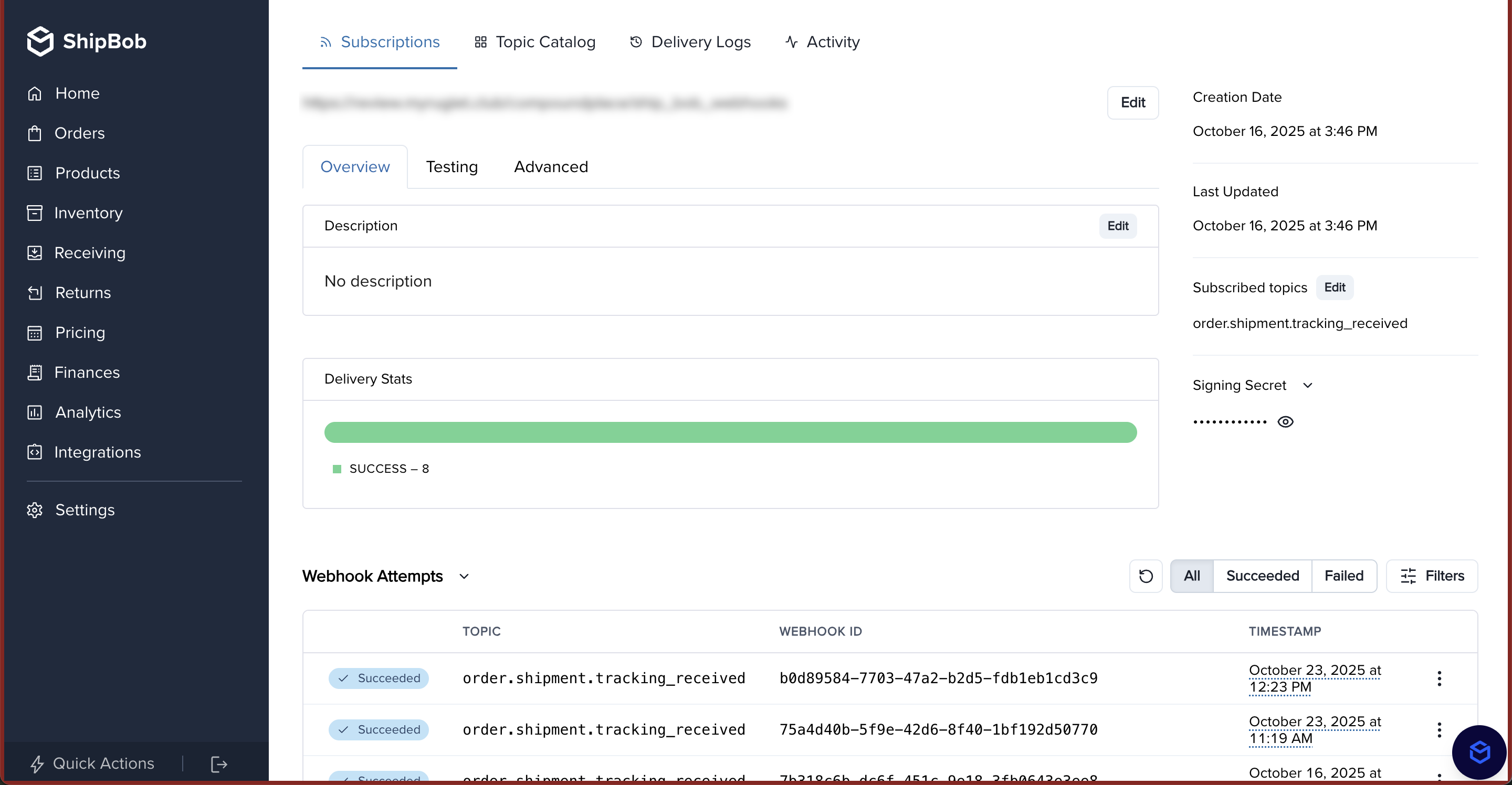
Yes, you can view webhook logs in the ShipBob dashboard by going to **Integrations** > **Webhooks**. Then, click into your webhook and you will be able to see logs at the bottom of the page.