***
title: Build an Orders Integration
description: A complete guide to creating and managing orders using the ShipBob API
last-updated: 'February 24, 2026'
---------------------------------
## Overview
The ShipBob Orders API enables you to programmatically create orders, retrieve tracking information, and manage fulfillment. This guide walks you through building a complete orders integration.
Before you begin, ensure:
* Your API key has the `orders_write` and `orders_read` access scopes
* You have your ShipBob channel ID ([get it here](/api/channels/get-channels))
***
## How It Works
Here's the complete order lifecycle from creation to delivery tracking:
```mermaid
sequenceDiagram
participant System
participant ShipBob
Note over System,ShipBob: Order lifecycle starts
System->>ShipBob: POST /2026-01/order (Create Order)
ShipBob->>ShipBob: Pick, Pack, Label
loop Polling (Every 15-30 min)
System->>ShipBob: GET /order?HasTracking=true&IsTrackingUploaded=false
ShipBob-->>System: Orders with Tracking
end
alt Real-time (Webhook)
ShipBob-->>System: Tracking update event
end
System->>System: Sync tracking number
System->>ShipBob: POST /shipment:batchUpdateTrackingUpload
ShipBob-->>System: Confirmed
```
***
## Step 1: Create an Order
Use the [Create Order](/api/orders/create-order) endpoint to create an order.
Make sure to pass the
`shipbob_channel_id`
in the request header. This identifies which channel the order belongs to.
```json POST https://{env}.shipbob.com/{api_version}/order lines
{
"shipping_method": "Standard",
"recipient": {
"name": "John Doe",
"address": {
"address1": "100 N Racine Ave",
"address2": "Suite 100",
"company_name": null,
"city": "Chicago",
"state": "IL",
"country": "US",
"zip_code": "60607"
},
"email": "johndoe@domain.com",
"phone_number": "555-555-5555"
},
"products": [
{
"name": "Light Roast Coffee",
"reference_id": "LIGHT-ROAST",
"quantity": 1
}
],
"reference_id": "1234762738908",
"order_number": "1001",
"type": "DTC",
"tags": [
{
"name": "Subscription Order",
"value": "0"
},
{
"name": "New Customer",
"value": "0"
}
]
}
```
**What you'll get back:**
The response returns information about the order and associated shipments, including the shipment IDs, line items, and the assigned fulfillment center.
```json JSON response lines
{
"id": 309589638,
"created_date": "2025-11-19T00:06:43.7807166+00:00",
"purchase_date": null,
"reference_id": "1234762738908",
"order_number": "1001",
"status": "ImportReview",
"type": "DTC",
"channel": {
"id": 432951,
"name": "PAT Channel"
},
"shipping_method": "Standard",
"recipient": {
"name": "John Doe",
"address": {
"address1": "100 N Racine Ave",
"address2": "Suite 100",
"city": "Chicago",
"state": "IL",
"country": "US",
"zip_code": "60607"
},
"email": "johndoe@domain.com",
"phone_number": "555-555-5555"
},
"products": [
{
"id": 1377083100,
"reference_id": "LIGHT-ROAST",
"quantity": 1,
"quantity_unit_of_measure_code": "EA",
"sku": "LIGHT-ROAST",
"gtin": "",
"upc": "",
"unit_price": null,
"external_line_id": null
}
],
"tags": [
{
"name": "Subscription Order",
"value": "0"
},
{
"name": "New Customer",
"value": "0"
}
],
"shipments": [
{
"id": 317255024,
"order_id": 309589638,
"reference_id": "1234762738908",
"recipient": {
"name": "John Doe",
"full_name": "John Doe",
"address": {
"address1": "100 N Racine Ave",
"address2": "Suite 100",
"company_name": null,
"city": "Chicago",
"state": "IL",
"country": "US",
"zip_code": "60607"
},
"email": "johndoe@domain.com",
"phone_number": "555-555-5555"
},
"created_date": "2025-11-19T00:06:43.7807166+00:00",
"last_update_at": null,
"last_tracking_update_at": null,
"status": "ImportReview",
"status_details": [],
"location": null,
"invoice_amount": 0.0,
"invoice_currency_code": null,
"insurance_value": null,
"ship_option": "Ground",
"tracking": null,
"products": [
{
"id": 1377083100,
"reference_id": "LIGHT-ROAST",
"name": "Light Roast Coffee",
"sku": "LIGHT-ROAST",
"inventory_items": [
{
"id": 21756231,
"name": "Light Roast Coffee",
"quantity": 1
}
]
}
]
// ... additional shipment fields omitted for brevity
}
]
// ... additional fields omitted for brevity
}
```
The `reference_id` field is your idempotency key. If ShipBob receives two identical requests with the same `reference_id` + `shipbob_channel_id`, it will return a 422 error.
***
## Step 2: Retrieve Tracking Details
ShipBob offers two workflows for retrieving shipment details:
Real time updates via webhooks. Click to jump to this section.
Poll the API on a schedule. Click to jump to this section.
### Webhooks
ShipBob can fire webhooks for shipment events including:
* **Shipped** (`order.shipped`) - When a shipment leaves the warehouse. **This is the primary webhook for syncing tracking details.**
* **Delivered** - When the carrier confirms delivery
* **Exception** - Product out of stock or other fulfillment issues
* **On Hold** - Invalid address or payment issues
* **Cancelled** - Shipment was cancelled
**How to subscribe:**
1. **Via Dashboard**: Go to **Integrations** > **Webhooks** > **Add Subscription**
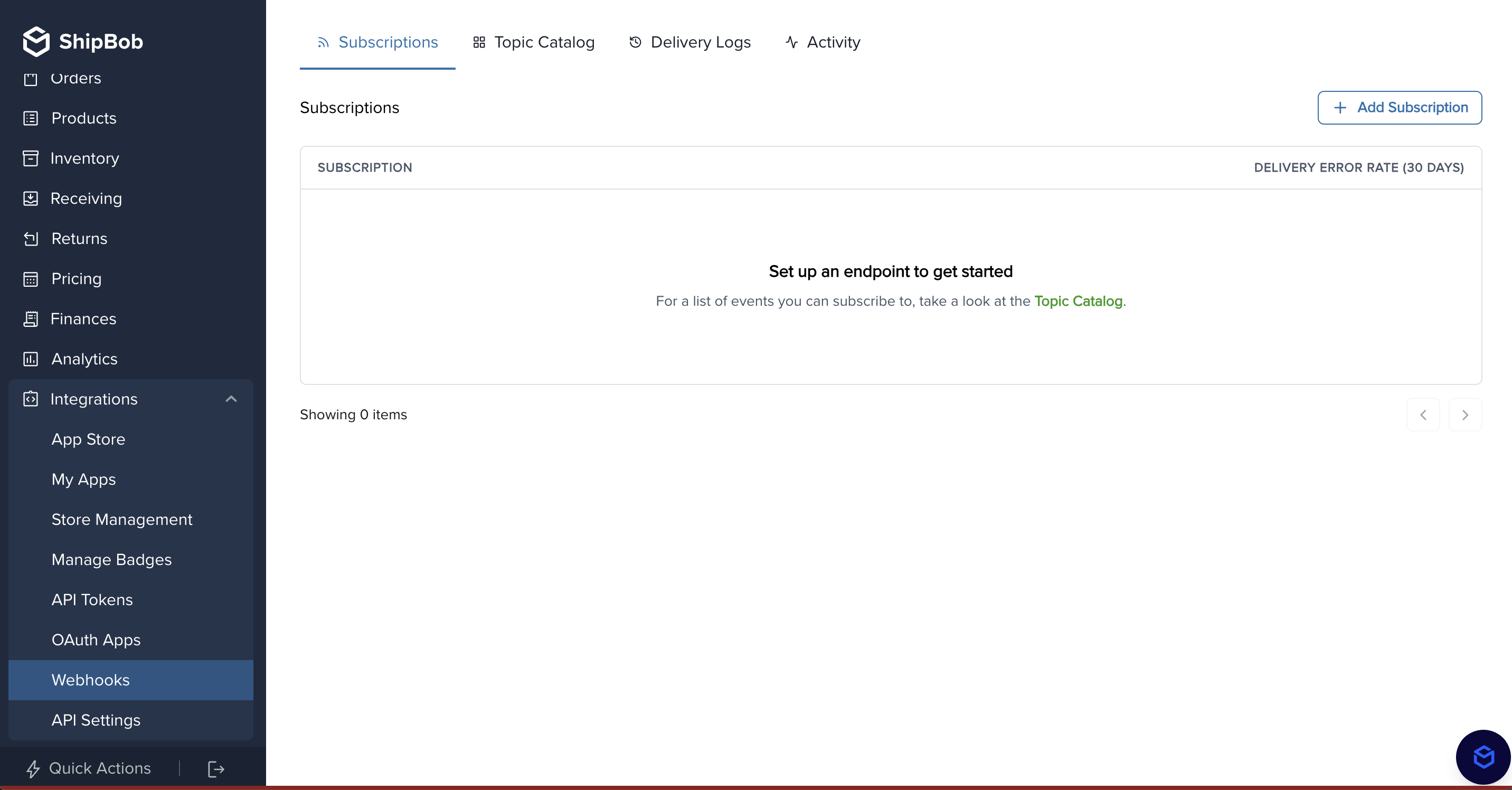
2. **Via API**: Use the [Create Webhook Subscription](/api/webhooks/create-subscription) endpoint
Learn more in the [Webhooks documentation](/webhooks).
ShipBob uses exponential backoff to retry webhook delivery for up to 24 hours, but cannot guarantee events arrive in the original sequence. Always check timestamps when processing webhooks.
### Polling
Poll the [GET Orders](/api/orders/get-orders) endpoint on a recurring schedule (every 15-30 minutes).
**Key parameters:**
* **`HasTracking`** - Filter for orders where tracking is available (shipment has been labeled)
* **`IsTrackingUploaded`** - Use as a sync flag. Set to `false` to find unsynced orders
**Recommended Request**
Get all orders that have been shipped but not uploaded to your system. Look at the `total-count` or `total-pages` parameter in the header of the response to determine if you need to use pagination.
```
GET https://{env}.shipbob.com/{api_version}/order?HasTracking=true&IsTrackingUploaded=false&Limit=250&Page=1
```
**Workflow:**
```mermaid
sequenceDiagram
participant Your System
participant ShipBob API
Your System->>ShipBob API: POST /2026-01/order (Create Order)
ShipBob API->>ShipBob API: Pick, Pack and Label Order
loop Every 15-30 minutes
Your System->>ShipBob API: GET /2026-01/order?HasTracking=true&IsTrackingUploaded=false
ShipBob API-->>Your System: Returns Orders with Tracking
end
Your System->>Your System: Sync tracking number to your system
Your System->>ShipBob API: POST /2026-01/shipment:batchUpdateTrackingUpload
ShipBob API-->>Your System: Confirmed
```
Pass the `shipbob_channel_id` header to only retrieve orders from your integration channel, avoiding data from other integrations the merchant may have installed.
**Understanding split shipments:**
An order can have multiple shipments if:
* Inventory is stocked in multiple fulfillment centers
* Items don't fit in one box due to size/weight
When a shipment has tracking, its status will be `LabeledCreated`, which quickly transitions to `Completed`. Always loop through the `shipments[]` array in the order response.
**Example: Order with split shipments**
```json
{
"id": 123456,
"reference_id": "ORDER-001",
"status": "Partially Fulfilled",
"shipments": [
{
"id": 789101,
"status": "Completed",
"tracking": {
"number": "1Z999AA10123456784",
"carrier": "UPS"
},
"products": [
{ "reference_id": "SKU-A", "quantity": 1 }
]
},
{
"id": 789102,
"status": "Processing",
"tracking": null,
"products": [
{ "reference_id": "SKU-B", "quantity": 2 }
]
}
]
}
```
For complete order and shipment status details, see the [Status Reference](/status-reference).
***
## Step 3: Mark Tracking as Synced
After syncing tracking to your system, mark shipments as uploaded to prevent re-processing:
```
POST https://{env}.shipbob.com/{api_version}/shipment:batchUpdateTrackingUpload
{
"shipment_ids": [789101, 789102],
"is_tracking_uploaded": true
}
```
This updates the `IsTrackingUploaded` flag so future queries with `IsTrackingUploaded=false` won't return these shipments.
***
## Retrieve Orders and Shipments
**Get a specific order:**
```
GET https://{env}.shipbob.com/{api_version}/order/{id}
```
**Get a specific shipment:**
```
GET https://{env}.shipbob.com/{api_version}/shipment/{id}
```
When looking at the order response payload, the shipment
`id`
is in the
`shipments`
array.
***
## Search for Orders
Use query parameters on the [GET Orders](/api/orders/get-orders) endpoint to search for orders.
**Common search queries:**
| Use Case | Query Example |
| -------------------------------- | ------------------------------------------------- |
| Orders with tracking information | `order?HasTracking=true&IsTrackingUploaded=false` |
| Search by reference ID | `order?ReferenceIds=1234762738908` |
| Orders within a date range | `order?StartDate=2025-11-01&EndDate=2025-11-30` |
**Get orders with tracking that haven't been synced:**
```
GET https://{env}.shipbob.com/{api_version}/order?HasTracking=true&IsTrackingUploaded=false&Limit=250
```
**Example: Search by reference\_id:**
```
GET https://{env}.shipbob.com/{api_version}/order?ReferenceIds=1234762738908
```
**Example: Get all orders for November 2025:**
```
GET https://{env}.shipbob.com/{api_version}/order?StartDate=2025-11-01&EndDate=2025-11-30
```
***
## Cancel an Order
You can cancel orders and shipments that haven't been picked, packed or shipped yet using the [Cancel Order](/api/orders/additional/cancel-order) endpoint.
Once a shipment is Picked, it cannot be cancelled. The order has already been physically picked from the warehouse shelves.
**Cancel an Entire Order**
```http
POST https://{env}.shipbob.com/{api_version}/order/{orderId}/cancel
```
**Example request:**
```bash
curl -X POST \
https://api.shipbob.com/2026-01/order/309589638/cancel \
-H 'Authorization: Bearer YOUR_ACCESS_TOKEN' \
-H 'shipbob_channel_id: 432951'
```
**Cancel Individual Shipments**
If an order has multiple shipments and you only want to cancel specific ones:
```http
POST https://{env}.shipbob.com/{api_version}/shipment/{shipmentId}/cancel
```
**Example request:**
```bash
curl -X POST \
https://api.shipbob.com/2026-01/shipment/317255024/cancel \
-H 'Authorization: Bearer YOUR_ACCESS_TOKEN' \
-H 'shipbob_channel_id: 432951'
```
***
## Important Fields
**`reference_id`** - Your unique order identifier. Acts as an idempotency key - duplicate `reference_id` + `shipbob_channel_id` combinations return a 422 error.
**`order_number`** - User-friendly order number for customer service. Does not need to be unique (can match `reference_id`).
**`shipping_method`** - Value like "Standard", "Expedited", or "2-Day". Merchants map this to ShipBob Ship Options that determine SLA and carrier selection. See [Ship Options guide](https://support.shipbob.com/s/article/Available-Ship-Options-and-Average-Carrier-Transit-Times-by-Country-of-Origin).
**`type`** - Order type:
* `DTC` - Direct-to-consumer orders (most common)
* `B2B` - Business-to-business orders (see [B2B Orders guide](/guides/orders#creating-b2b-orders))
**`shipbob_channel_id`** (header) - Identifies which channel the order belongs to. Get your channel ID from the [GET Channels](/api/channels/get-channels?explorer=true) endpoint.
**`products.reference_id`** - SKU or unique product identifier. Must match a product created in ShipBob (see [Product Management Guide](/guides/products)).
**`IsTrackingUploaded`** - Boolean flag indicating if you've synced the tracking to your system. Use this to prevent duplicate processing.
***
## Common Issues
Each order must have a unique `reference_id` within a channel. If you need to resubmit, use a different `reference_id` or cancel the original order first.
Ensure required fields are provided: `address1`, `city`, `country` (ISO Alpha-2 code), and ideally `state` and `zip_code`.
Call the [GET Channels](/api/channels/get-channels?explorer=true) endpoint. Look for the channel with `_write` scopes — that's your integration channel.
Check the `status_details` field in the shipment for specific reasons. Common causes: out of stock, invalid address, missing customs info. See [Status Reference](/status-reference) for details.
***
## Tips
* **Poll every 15-30 minutes** - Don't check more frequently than every 5 minutes to avoid rate limits
* **API rate limit** - 150 requests per minute
* **Always use `shipbob_channel_id` header** - Prevents retrieving orders from other integrations
* **Use webhooks + polling fallback** - Webhooks for real-time updates, polling as a safety net
* **Handle split shipments** - Always loop through `order.shipments[]` and sync each tracking number separately
* **Mark tracking as uploaded** - Use the `batchUpdateTrackingUpload` endpoint to avoid re-processing
* If your integration receives unexpected edit or update requests to orders after creation, consider implementing a 1-hour delay before sending orders to ShipBob
***
## Related Resources
* [Create Order API Reference](/api/orders/create-order)
* [Get Orders API Reference](/api/orders/get-orders)
* [Webhooks Documentation](/webhooks)
* [Status Reference](/status-reference)